Salesforce
The Salesforce connection authorizes FunnelStory to read your CRM data using OAuth. Use it to back data models (with SOQL in the model builder), to support CRM sync where your workspace writes selected fields back to Salesforce, and anywhere else the product surfaces Salesforce as a source.
What FunnelStory uses it for
- Data models — Query Accounts, Opportunities, custom objects, and more using SOQL blocks or combined setups your workspace supports.
- CRM sync — Optional outbound updates to Salesforce when configured separately.
- Enrichment — Salesforce can participate in enrichment-style flows where your workspace enables it.
Before you connect
- Use a dedicated Salesforce integration user. See Required permissions below for the specific System Permissions the integration user's Permission Set must include.
- Know your Salesforce login URL (production, sandbox, or custom domain).
Add the connection in FunnelStory
-
Open Configuration → Connections → Add connection, then choose Salesforce.
-
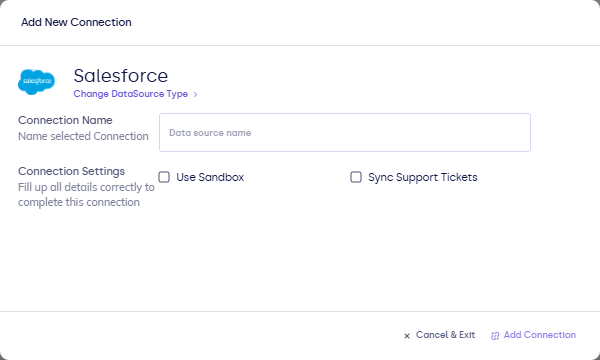
Complete the fields in the connection form:
| Field | Description |
|---|---|
| Connection name | How this org appears in FunnelStory (for example Salesforce Production). |
| Sync Visibility | When enabled, connection Sync refreshes Salesforce account visibility for workspace users when the last full sync was at least 2 days ago; use Sync visibility in CRM visibility for an immediate refresh. |
| Sync Support Tickets | Optional inbound support ticket sync when your workspace uses it. |
-
Click Connect or Authorize to start OAuth.
-
Approve the Salesforce consent screen and return to FunnelStory when prompted.

After you connect
- For models, write SOQL using the block format in Writing queries.
- Use Refresh on the connection or wait for scheduled syncs, per your workspace settings.
Required permissions
Create (or update) a Permission Set assigned to the integration user and enable the following under System Permissions:
| Permission | Why it's needed |
|---|---|
| API Enabled | Required for any programmatic access to Salesforce data. |
| View All Users | Allows FunnelStory to read User records across the org. Without this, standard fields like UserRoleId are hidden entirely — Salesforce returns "No such column" rather than an access error, which makes the cause hard to diagnose. |
| View Roles and Role Hierarchy | Required for UserRoleId and related role fields to appear on the User object in SOQL queries. |
| View Setup and Configuration | Allows FunnelStory to introspect org metadata (object descriptions, field lists) used when building data models. |
Field-level security does not control UserRoleId or other standard User fields — these System Permissions do. If a SOQL query against User returns "No such column" for a standard field, check these four permissions first.
Object access
The integration user also needs Read access on every Salesforce object FunnelStory queries. Grant this through the user's Profile or a Permission Set under Object Settings:
| Object | Typical use |
|---|---|
| Account | Core account data for models and CRM sync. |
| Opportunity | Deal data, stages, and revenue metrics. |
| Case | Support ticket data and case metrics. |
| Contact | Contact-level data linked to accounts. |
| User | Owner lookups, role hierarchy, and user assignment data. |
| UserRole | Role names referenced via UserRole.Name in SOQL joins. |
Grant Read on any custom objects or fields your data models reference.
CRM sync creates FunnelStory-owned custom objects in your Salesforce org. The integration user needs Create, Edit, and Read on those custom objects. After the first sync run, verify they appear in Setup → Object Manager and confirm the permission set grants access.
Flow functions (such as salesforce.create_record used in AI agent flows) write to standard and custom objects — for example creating Tasks, Notes, or updating Account fields. Grant Create and Edit on every object a flow function targets. Without these, flow runs will fail with a permission error at the point of the write.