Projects
Projects group the tasks and notes you deliver for an account into one initiative—onboarding, a renewal play, an escalation, or any multi-step deliverable—so you can track progress, see what's behind schedule, and review what shipped. Reach for a project whenever work spans more than a single task and you want a board, a progress bar, and an AI summary in one place instead of loose tasks scattered across an account.
Before projects, tasks were standalone work items with no grouping: there was no way to tie a set of tasks and notes to a deliverable, see overall progress for an account, or get a high-level read on where the work stands. Projects add that container.
How projects work
A project has a title, an optional description, a linked account, a state that maps to a kanban column, and an optional due date. Tasks belong to a project through a project link—the task still appears on your normal task surfaces, and the project groups it for planning. Subtasks roll up under their parent task. Notes attach to the project the same way notes attach to accounts.
Progress on every card and on the detail page is completed / total linked tasks. As tasks move, the project state can update on its own (see Project states). A project that is past its due date while still Open or In Progress shows an Overdue badge—the badge flags the schedule slip but does not move the card to another column.
Enabling Projects
Projects is a gated feature: the Projects item appears in the main navigation once it's enabled for your workspace. If you don't see it, contact your FunnelStory team to turn it on—there's no self-serve toggle today.
The Projects page
Open Projects (/projects) for a workspace-wide view.
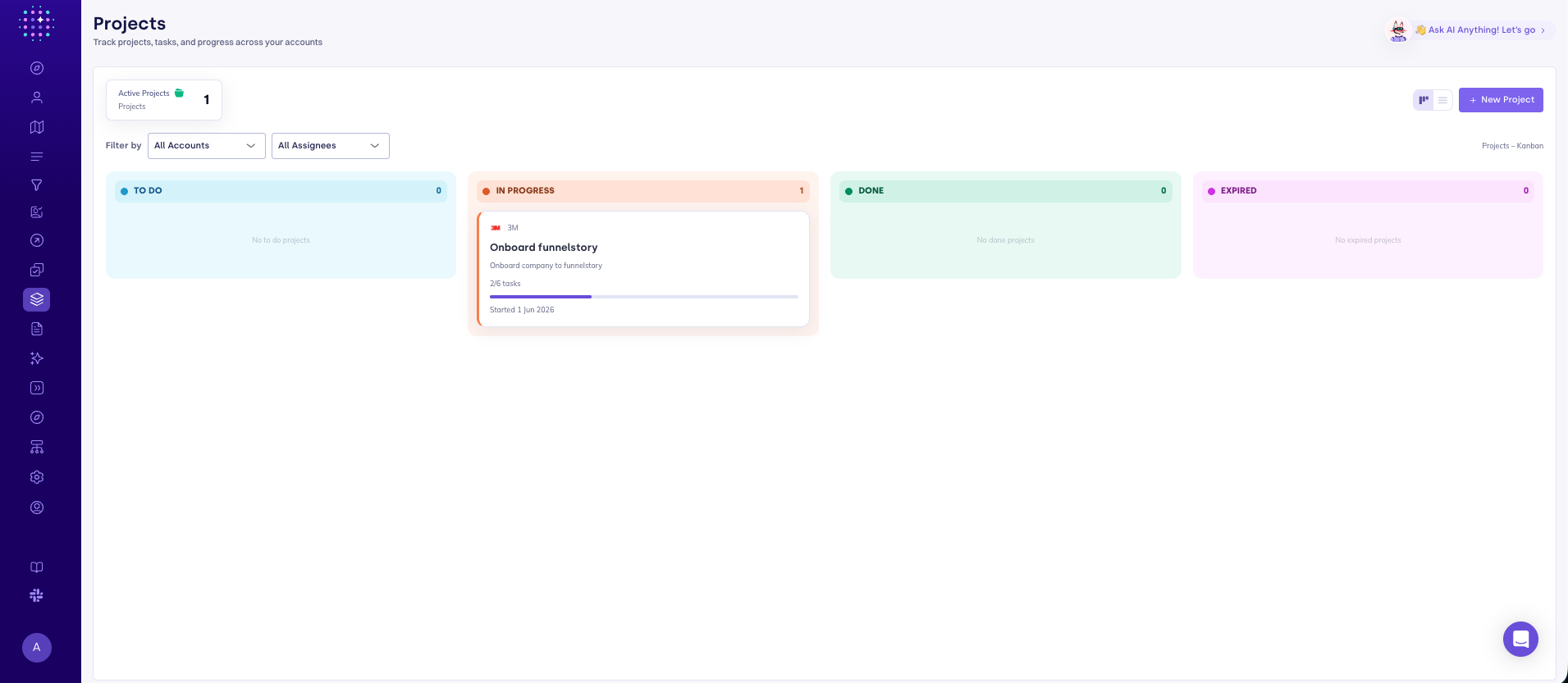
Summary and views
The toolbar shows an Active Projects stat (projects in Open or In Progress) and a view switch:
| View | What you see |
|---|---|
| Projects – Kanban | Project cards grouped into four columns by state |
| Projects – List | A table of title, account, status, progress, and started date |
Click New Project to create one.
When the workspace has no projects yet, the page shows No projects yet with a Create your first project button.
Project cards
Each kanban card shows the account name and logo, the project title, a description excerpt, a task progress bar (for example 2/5 tasks), the started date, and an Overdue badge when applicable.
Filters
Use Filter by to narrow the board or list:
- All Accounts — show only projects linked to the selected account.
- All Assignees — show only projects that have at least one task assigned to the selected workspace user.
Clear filters appears once a filter is set and resets both. The active view name (for example Projects – Kanban) is shown on the right.
Creating a project
- On Projects, click New Project.
- Enter a Title (required).
- Select an Account (required, unless creating a template—see below).
- Optionally add a Description.
- Click Create Project. You land on the new project detail page.
Project templates
Project templates are workspace-level projects not linked to any account—they define a type of initiative (for example "Onboarding" or "Value Generation") that CSMs provision individually for each customer account. Templates appear in a dedicated Templates section on the Projects page, separate from active account projects.
Templates are the building blocks for Project State funnel conditions: when you want a funnel stage to require that an account's onboarding project is complete, you reference the "Onboarding" template in the condition. That link is preserved by source_project_id even if the project is later renamed.
Creating a template
Only admins can create templates.
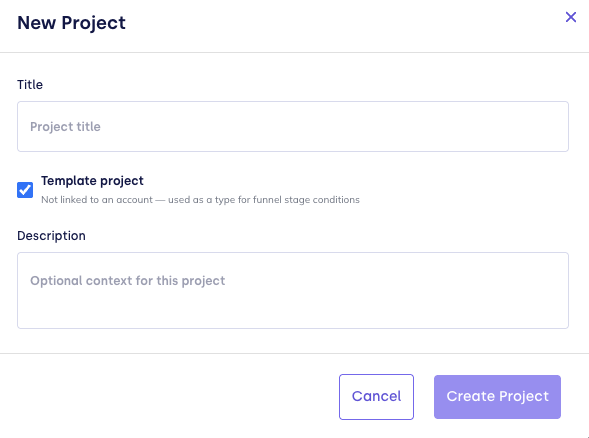
- On Projects, click New Project.
- Enter a Title.
- Check Template project — the account selector disappears since templates are not linked to an account.
- Optionally add a Description (it becomes the default description for provisioned projects).
- Click Create Project.
The template appears in the Templates section of the Projects page.
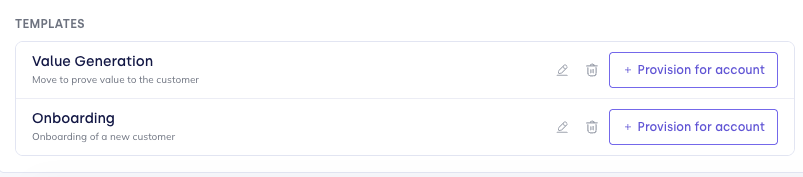
Managing templates
Each template in the Templates section has three actions (admin-only for edit and delete):
| Action | What it does |
|---|---|
| Edit (pencil icon) | Rename the template |
| Delete (trash icon) | Remove the template — per-account projects already provisioned from it are not affected |
| + Provision for account | Open the provisioning modal to create a project for a specific account |
Provisioning projects from templates
Provisioning creates a per-account project that is stamped with the template it came from. That stamp (source_project_id) is what lets funnel stage conditions track this project type across all accounts regardless of future renames.
- In the Templates section, find the template you want to use.
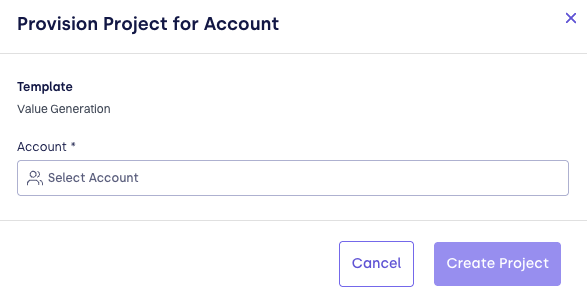
- Click + Provision for account.
- In the Provision Project for Account modal, select the Account you are creating the project for.
- Click Create Project.
The new project appears on the kanban board under the selected account, with the template's title and description pre-filled. It behaves exactly like any other project—you can add tasks, notes, and change its state.
Project states and the kanban board
Kanban columns map to the project state:
| Column | State | Meaning |
|---|---|---|
| To do | open | Not started, or reopened after completion |
| In Progress | in_progress | Work has started on linked tasks |
| Done | completed | Initiative finished |
| Expired | expired | No longer active |
The overview board is read-only for status—you don't drag cards between columns there. Open a project to change its status or manage tasks.
Automatic state from tasks
When a project has at least one linked task, FunnelStory moves its state based on task activity:
- In Progress when any linked task is in progress.
- Done when every linked task is finished (done or canceled).
- Back to To do when tasks reopen and none are in progress.
Projects with no linked tasks never auto-change state.
Manual completion
On the detail page, click the status badge to toggle a project between Completed and Open without deleting it.
Project detail
Open a project from a card or list row.
Header
- Editable title — click the title to rename; save on Enter or blur.
- Account — the linked account, with its logo.
- Status badge — manual complete / reopen.
- Started date when set.
- Progress —
completed / totallinked tasks. - Delete — removes the project after confirmation. Linked tasks and notes stay in the workspace; only their link to this project is removed.
AI Summary
AI Summary generates a short executive read of the project from its tasks and notes. It runs automatically when you open the project and refreshes as the underlying tasks and notes change. Your workspace needs a configured AI provider for summaries to run; if generation fails, an inline error is shown.
Tasks tab
The Tasks tab (with a live count) manages this project's work:
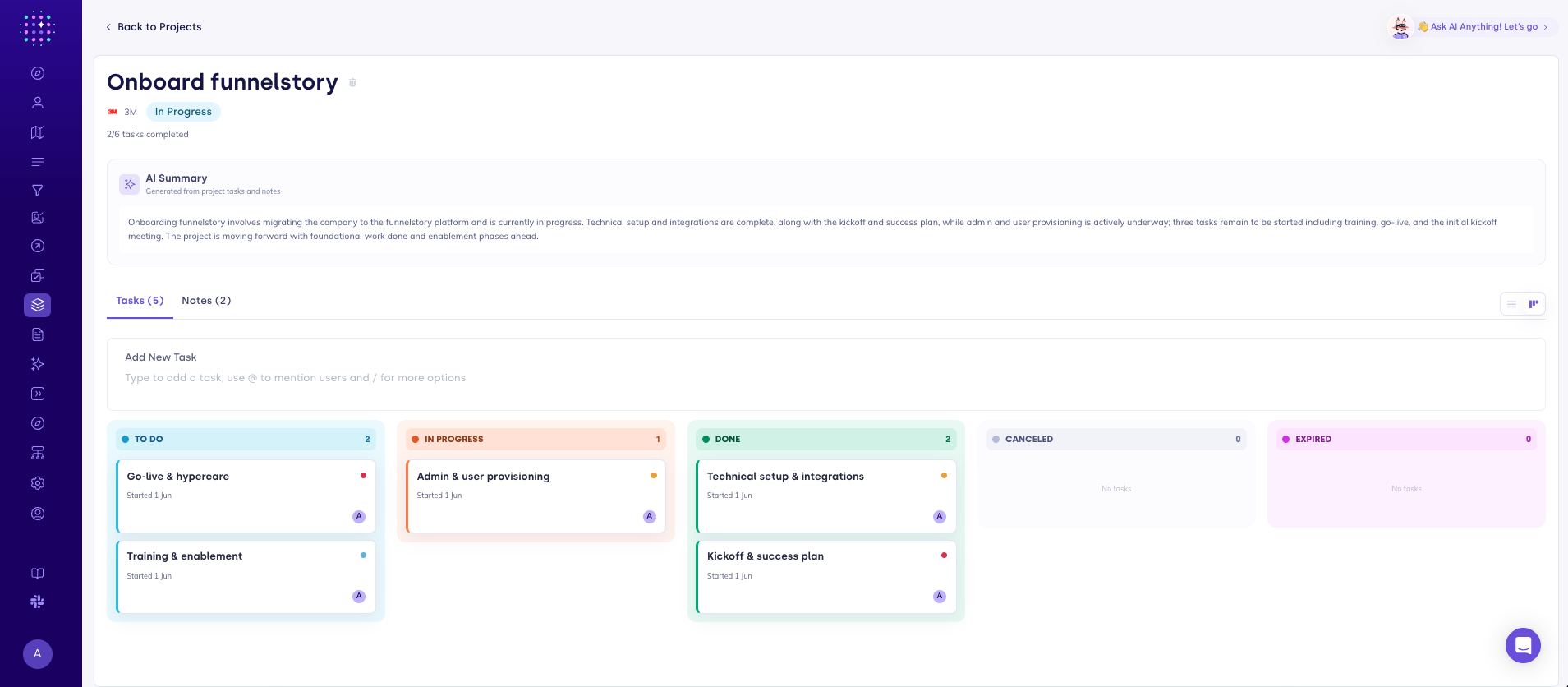
- Toggle between Kanban and List views of the project's top-level tasks; subtasks roll up under their parent.
- Add a task inline at the top—new tasks are linked to this project and default to you as the assignee when available.
- Click any task to open the standard task panel.
Tasks created elsewhere can be linked to a project from the task editor; the project pill on a task links back to its project detail.
Notes tab
The Notes tab (with a live count) is the same notes experience as the rest of the product, scoped to this project: create, edit, label, and delete notes that reference it.
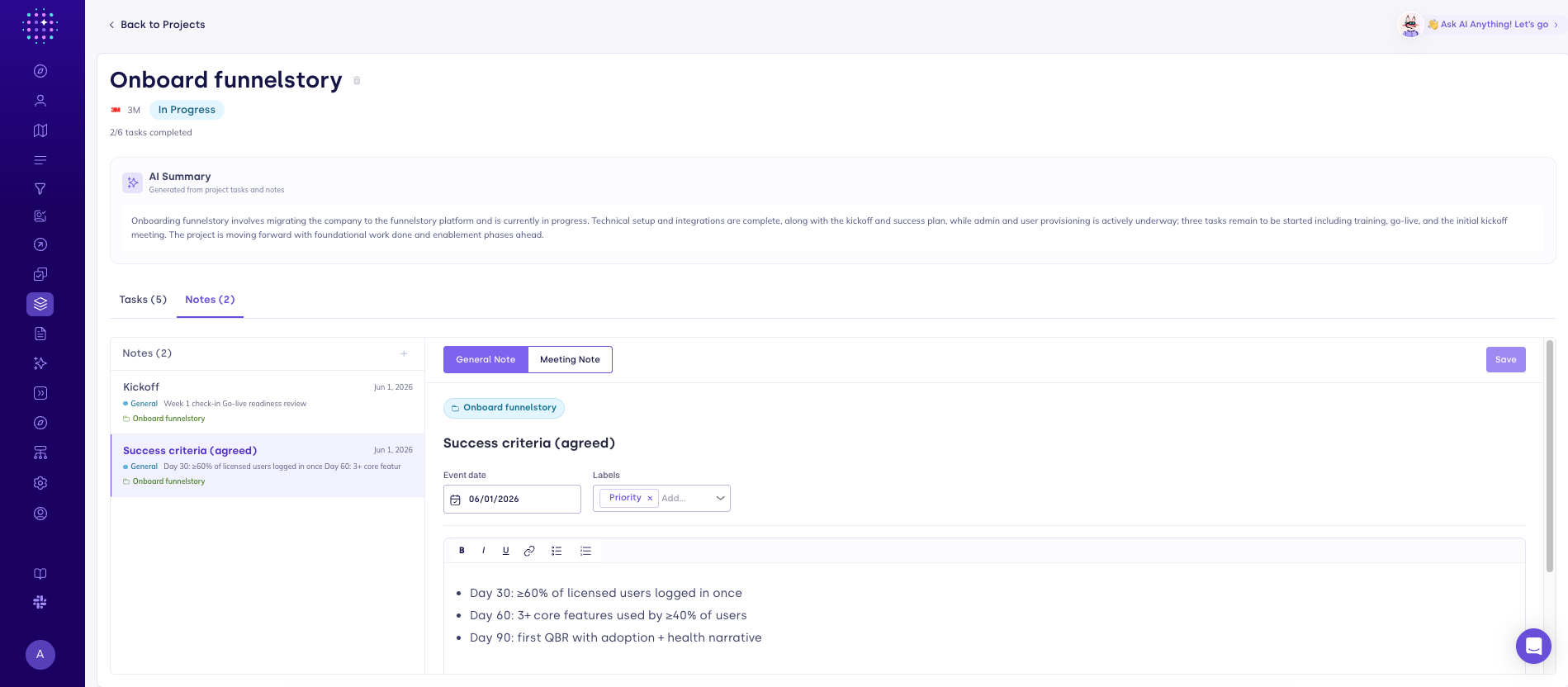
Imported notes from a Note model stay read-only here, just like on the workspace Notes page. See Notes for composer behavior, labels, and templates.
Tasks without projects
You can keep using tasks on accounts, revenue views, and task lists without ever creating a project. Projects add grouping, board status, progress, and summaries on top of the task model—they don't replace it. To import tasks from an external system, see the Task model.
Agents and automation
Configured AI agents can create and update projects as part of a workflow, supplying a title, account, source template, and optional description, due date, and assignee. Agent-created projects appear on the Projects page like any other.
Related
- Stage conditions → Project State — use template-linked projects as funnel gates.
- Notes — account-level and project-scoped notes.
- Accounts — the customer records projects link to.
- Task model — importing tasks from external data.
- AI providers — required for project AI summaries.
- Audit log — administrative history of changes.