Single Sign-On (SSO)
Single Sign-On lets your team sign into FunnelStory using your company identity provider (IdP), so access follows the same policies, groups, and lifecycle as your other business applications. With SCIM provisioning on top of it, the users and roles in your directory become the source of truth for who can use FunnelStory and what role they hold.
What FunnelStory supports
FunnelStory supports SAML and OIDC identity providers, including Okta, Google Workspace, Microsoft Entra ID, and any other IdP that speaks either protocol. SCIM provisioning keeps your workspace membership and roles in sync with your directory, and SSO can be enforced so members of your organization sign in only through your IdP.
How SSO works
Your workspace is connected to a dedicated tenant that holds your SSO configuration. FunnelStory creates this tenant and sends you a configuration link for your IT team to complete against your IdP.
Two things must be true for sign-in to work:
| Requirement | Value |
|---|---|
| Post-authentication redirect URL | https://app.funnelstory.ai/api/auth/sso/callback |
| Mandatory user attribute | email — your IdP must send the user's email address, and it must be mapped in the SSO configuration |
The redirect URL must include the full /api/auth/sso/callback path, not just the base URL. FunnelStory sets this up centrally, so you don't configure it per tenant, but it's worth confirming if sign-in fails.
If you run a self-hosted or private deployment, substitute your own FunnelStory domain for app.funnelstory.ai and keep the /api/auth/sso/callback path unchanged. Use the same domain your team signs in on — if you aren't sure which that is, confirm it with your FunnelStory team before configuring your IdP.
SSO covers authentication only — verifying who the user is. What a user can do inside FunnelStory is decided by their FunnelStory role, which SCIM group mapping can drive (see below).
Signing in
- IdP-initiated — a user clicks the FunnelStory app tile in Okta, Google Workspace, or your IdP's app portal. This is the primary flow.
- From the FunnelStory login page — users sign in with an email code sent to their address.
The first time a user signs in through SSO, FunnelStory creates their account and sends them through onboarding. Returning users are signed straight in.
Setting up SSO
- Contact your FunnelStory team. They create the tenant for your workspace and send you the SSO configuration link.
- Open the configuration link and connect your SAML or OIDC application, following the prompts for your IdP.
- Map the
emailattribute so your IdP sends each user's email address on every assertion or token. - Configure group mappings so users get the right role. Don't leave this for later — without it everyone signs in as Account User (see Group mapping requirements).
- Ask FunnelStory to link the tenant to your workspace. This step is required before user sync will run.
- Test with a pilot user from the IdP app tile before rolling out to the rest of your team.
Provisioning users with SCIM
SCIM provisioning is configured from the same SSO setup suite as your SSO connection. Once it's running, FunnelStory reflects your directory: users appear in the workspace, role changes follow group changes, and removals deactivate access.
Users sync into FunnelStory when someone opens Admin → Team. New users are added with the role their IdP group maps to; if no group matches a FunnelStory role, they get Account User, the base role. Users who have been disabled or deleted in your IdP are deactivated in FunnelStory, and role changes in your directory update the user's FunnelStory role on the next sync — unless your workspace uses role preservation.
Keeping roles managed in FunnelStory
If you'd rather manage roles in Admin → Team than in your directory, ask your FunnelStory team to turn on role preservation when they link your tenant. With it on:
- New users still get the role their IdP group maps to when they're first provisioned.
- Existing users keep their current FunnelStory role on every sync, even if their directory groups change.
- Deactivation and reactivation still follow your directory. A reactivated user comes back with the role they had before.
Group mapping requirements
Role assignment depends entirely on groups, so get these right during configuration:
- Add the group mappings. Roles come only from groups — there is no other way to assign them through SSO. If you skip group mapping, or a user's group doesn't match any mapping you entered, that user is created with the Account User base role regardless of what they should have. Fixing it afterwards means correcting the mapping and clicking Resync SSO roles (see Resyncing roles after a mapping change).
- Every user must belong to a group. A user with no group at all lands on Account User for the same reason.
- Leave the default role unset. Don't select a default role anywhere in the configuration. FunnelStory applies Account User as the fallback on its own, and setting your own default overrides the group-based assignment you just configured.
- Use the same attribute name everywhere. Name the attribute
groupsin your IdP and enter the identical Groups attribute name in the SSO configuration. - Group names must match exactly. The group name in your IdP and the one entered in the configuration are compared literally, including case.
- The highest role wins. If a user belongs to several mapped groups, they get the most privileged role among them, in this order:
super_admin,admin,data_admin,manager,account_user.
In the SSO configuration suite, each mapping pairs one IdP group with one FunnelStory role. Role names use lowercase underscores, such as data_admin or manager:
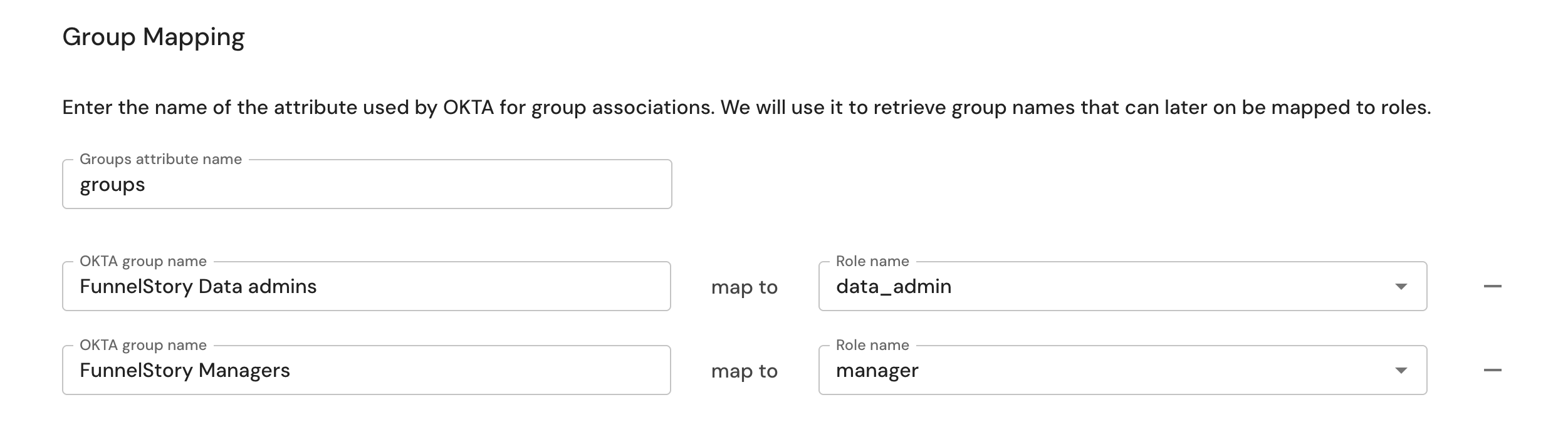
If the Role name dropdown is empty or doesn't list the roles you expect, stop and contact your FunnelStory team — the roles are provisioned on FunnelStory's side, and you can't complete a correct mapping without them. Don't work around it by leaving groups unmapped or picking a default role; both paths end with everyone on Account User.
Resyncing roles after a mapping change
Changing a group mapping only affects future syncs — it doesn't reach back and fix the role of a user who was already provisioned under the old mapping. To apply the new mapping to existing users, go to Admin → Team and click Resync SSO roles. The button appears only for Admins and Super Admins, and only on workspaces that use SAML:
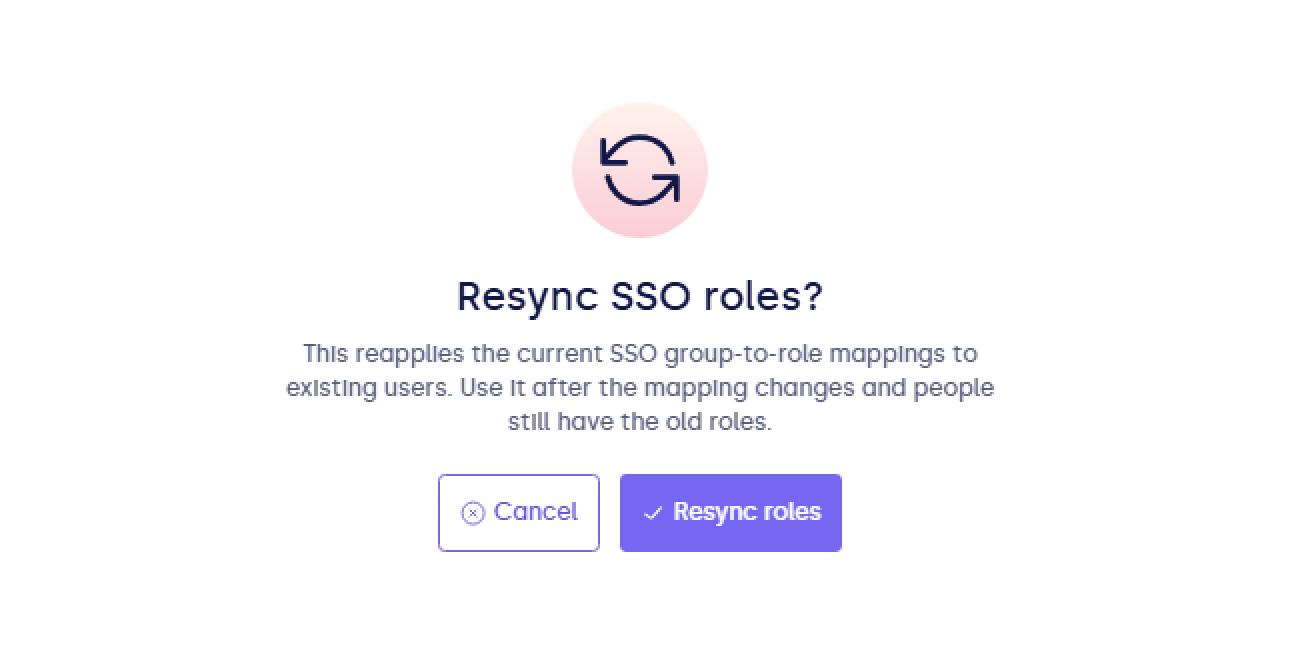
This reapplies your current group-to-role mappings to everyone already in the workspace. Use it any time you've corrected a mapping and existing users are still stuck on their old role — you don't need to wait for their next scheduled sync or ask them to sign in again.
On an OIDC workspace there's no resync button. Correct the mapping, then have affected users sign in again — each sign-in reapplies the mapping to that user. If your workspace uses role preservation, neither a resync nor a new sign-in changes existing users' roles — change them in Admin → Team instead.
When group changes don't appear
If you change a user's group in your IdP and their FunnelStory role doesn't follow, the group hasn't been pushed yet. Okta in particular does not push group changes immediately — manually push groups from the IdP, then reopen Admin → Team and click Resync SSO roles (SAML workspaces).
Troubleshooting
The RelayState field must be a valid value
{"errorCode":"E011003","errorDescription":"Request is invalid","errorMessage":"The RelayState field must be a valid value"}
The post-authentication redirect URL is missing or incomplete. It must be your FunnelStory sign-in domain followed by the full /api/auth/sso/callback path — https://app.funnelstory.ai/api/auth/sso/callback, or your own domain on a self-hosted deployment. Contact your FunnelStory team to confirm the value.
Everyone lands on Account User — group mappings are missing, the group names don't match exactly, or a default role was selected in the configuration. Review Group mapping requirements, correct the mapping, then click Resync SSO roles in Admin → Team.
The Role name dropdown is empty when mapping groups — the roles haven't been provisioned for your tenant. Contact your FunnelStory team rather than saving a partial mapping.
Users sign in but land on the wrong role — check that the groups attribute name matches on both sides and that group names match exactly, then push groups again from your IdP and click Resync SSO roles in Admin → Team.
Users don't appear in the workspace at all — the tenant may not be linked to your workspace yet. Contact your FunnelStory team.
Sign-in fails with a missing-attribute error — the email attribute isn't mapped in your IdP application.
Related
- Security — encryption, isolation, and reviews
- Workspace management — workspaces, access, and administration