Zoom
The Zoom connection uses Zoom OAuth to pull meeting metadata, participants, summaries, and downloadable transcripts into FunnelStory for meeting conversations and account context.
What FunnelStory uses it for
- Meetings — Zoom meetings sync according to the product’s built-in meeting ingestion.
- Meeting summaries — Zoom AI Companion summaries and next steps are attached to the meeting when available.
- Meeting transcripts — Downloadable transcripts are stored in FunnelStory and associated with the meeting conversation.
Before you connect
- A Zoom account admin is required to authorize the integration.
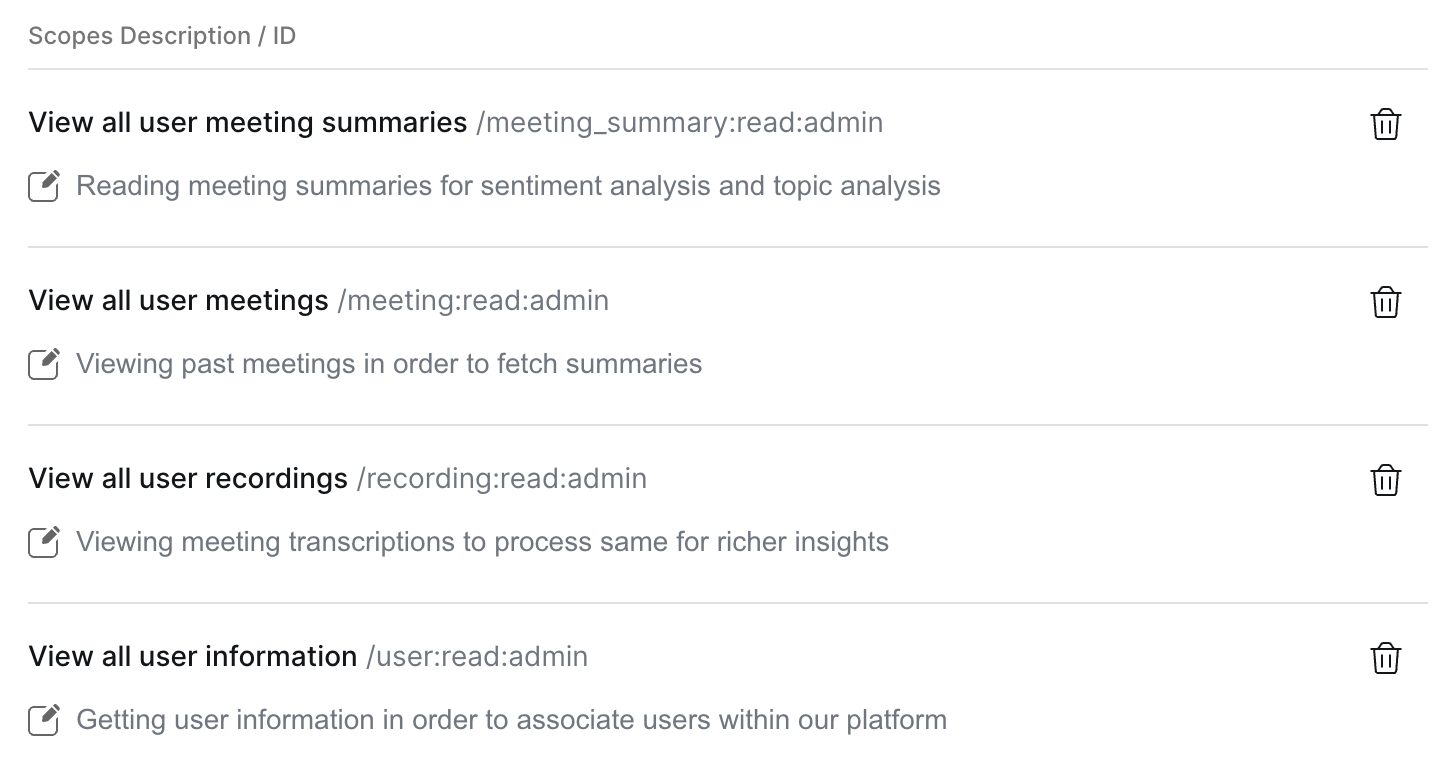
- In Zoom App Marketplace (or the app settings your organization uses), enable read-only access for Zoom users, meetings, meeting summaries, recordings, and transcripts. FunnelStory uses these permissions to ingest meeting data; it does not modify Zoom meetings or recordings.
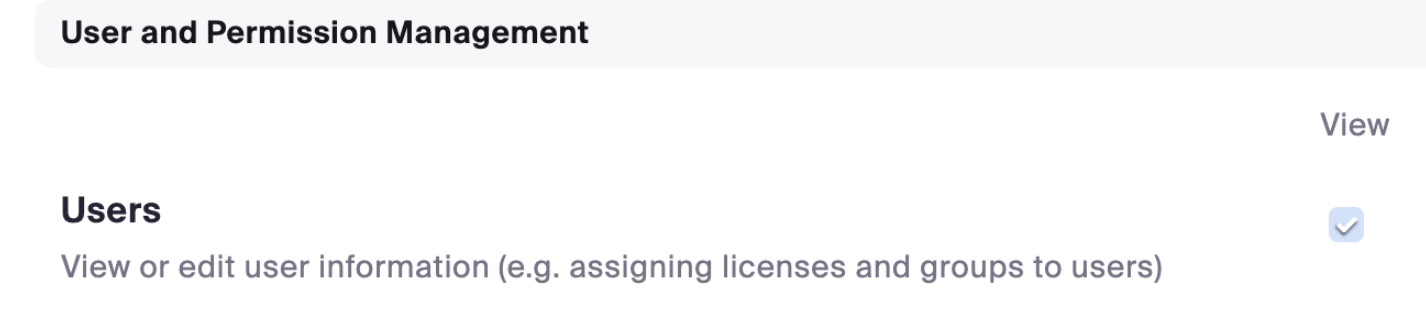
- Under User Management (or equivalent admin UI), allow Users (View) (or the permission your integration checklist specifies).
-
Under Zoom meeting settings, enable Meetings (Entire account) (or the current equivalent) so the authorized integration can read meetings for users in the account.
-
Enable Meeting summary with AI Companion if you want FunnelStory to import Zoom meeting summaries and next steps.


Add the connection in FunnelStory
-
Open Configuration → Connections → Add connection, then choose Zoom under application integrations.
-
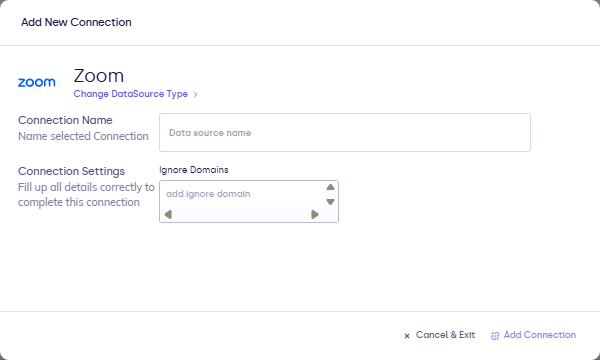
Complete the fields in the connection form:
| Field | Description |
|---|---|
| Connection name | Display name. |
| Ignore domains | Optional. Comma- or line-separated domains where internal chatter should be ignored. |
- Click Connect to launch Zoom OAuth.
After you connect
Once you’ve added the Zoom data connection, a Meeting Model will be automatically created for you.
FunnelStory refreshes the connection on its normal schedule. You can also run a manual sync from the connection when you want to fetch new meetings immediately.
Transcripts aren't always available right away after a meeting ends. If one isn't ready yet, it will appear on the meeting conversation once Zoom has finished processing it.
Disconnecting the integration
To deauthorize Zoom, delete the connection from Configuration → Connections:
- Click the trash icon on the Zoom connection row.

- Confirm by clicking Delete Connection in the dialog. If the connection is used in any Models, deleting it will affect those Models.

Deleting the connection removes the integration and stops any further syncing.
If you get an error that the connection is referenced by a data model (for example, Zoom meetings), go to Configuration → Models and delete that data model first, using the trash icon on its row, then delete the connection.
