Model history
Model history is the record of every change to a data model: who made it, when, why, and what changed. Use it to review an edit, to see what a model looked like before it, or to put the model back after a change that didn't work out.
How it works
Each save that changes a model's definition records a version. The definition is the model's name, description, whether it is active, its connection, its query and data source options, its mappings, and its joins. A save that changes none of these records nothing. Deleting a model records a final version, so the history shows when it was removed.
Changes made in the product, by an AI assistant through the MCP server, and by FunnelStory itself are all recorded, and the history says which. A model that existed before history was introduced has no versions until its next change. When it changes, the definition it had before is kept as its first version, shown as made by FunnelStory.
The newest version is the one that is running. It is marked Running, unless the model is a draft or has been deleted, since neither is running.
Opening the history
The Data Models list shows Changed 3 hours ago by Jane under Refreshed on each model that has a recorded version. Click that line to open the model with its history showing.
On the model's Configure page there are two ways in:
- Click History at the top right.
- Click the Changed … by … line in the details card on the right.
Hover a time to see the exact date and time.
Reading the history
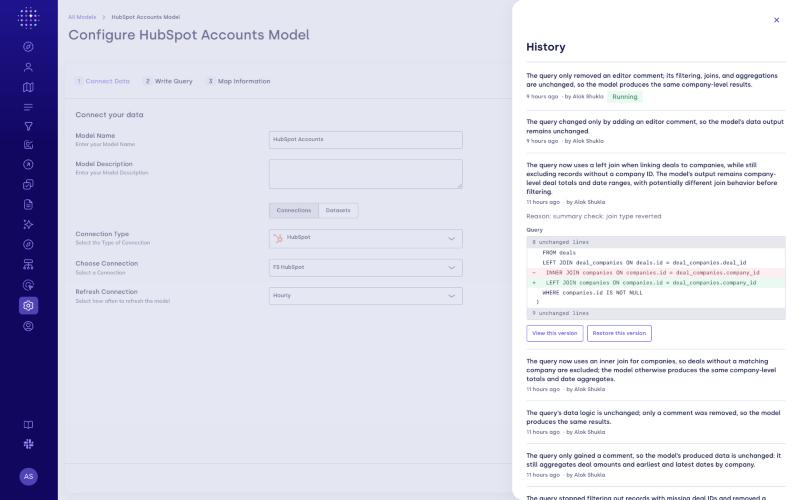
The history opens in a panel, newest version first. Each row shows:
| Part | What it tells you |
|---|---|
| Summary | A short plain-language description of the change, written by AI shortly after the save, so it can appear a moment after the row does. A version has no summary when FunnelStory made the change itself, or when the query is very large (over about 4 KB). |
| When | How long ago it was saved. |
| Who | The person who saved it. A change FunnelStory made itself shows FunnelStory, and a change made through an AI assistant is marked (MCP). |
| Running | Marks the version that is running now. |
Click a row to open it. One row is open at a time. It shows:
- Reason, if the person gave one when they saved. See Giving a reason when you save.
- What changed, one line each: the name, the description, active or inactive, the connection, the data source options (parameters, table, dataset or limit), and every mapping and join that was added, removed or changed.
- The Query as a diff, with removed lines in red and added lines in green. Stretches of unchanged lines are collapsed into a line such as 9 unchanged lines, and a line longer than 300 characters is cut, saying how many characters were left out. View the version to read the query in full.
A version that changed nothing in the definition says so.
Viewing an earlier version
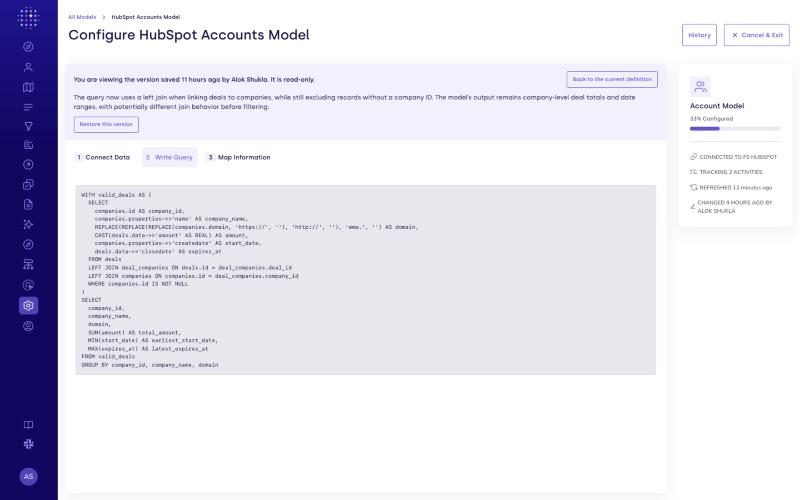
Open a row and click View this version to see the model as it was. The Configure page shows that version in its steps, Connect Data, Write Query and Map Information:
| Step | What it shows |
|---|---|
| Connect Data | The model's name and description, its connection, and the table or dataset it reads. |
| Write Query | The query in full. |
| Map Information | Which column each property reads from, marked (required) where it is, and the joins. |
A banner at the top says when the version was saved and by whom, and that it is read-only. Nothing on the page can be edited or saved, and Refresh is hidden, because a refresh runs the model as it is now. The steps follow the model's connection type, so a connection that has no query step doesn't show Write Query.
Click Back to the current definition to return to the editor. Changes you had typed but not saved are not kept when you view an earlier version, so save first if you want them.
The version is part of the page's address, so you can bookmark it or send it to a teammate who has access to the model.
Restoring a version
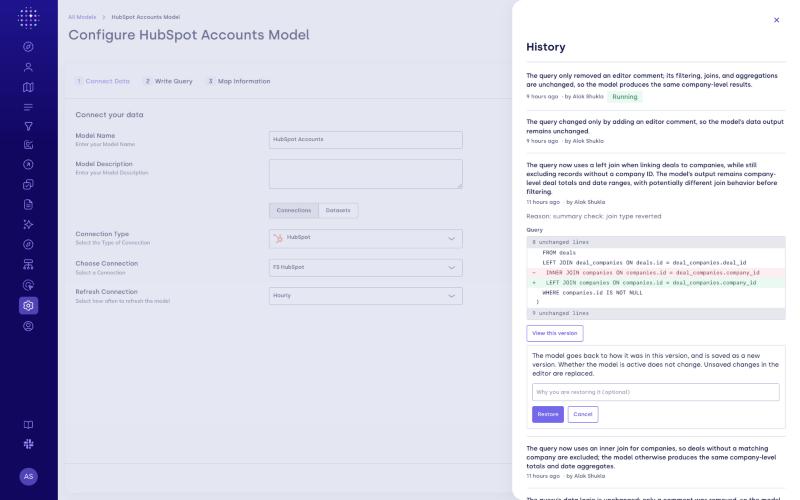
Restoring puts the model back to how an earlier version had it. The history isn't rewritten: the restore is saved as a new version at the top, so you can undo it the same way.
- Open the version in the History panel, or view it, and click Restore this version.
- Optionally, enter why you are restoring it, up to 500 characters.
- Click Restore. Click Cancel to leave the model as it is.
You see Restored that version of the model, and the new version appears at the top of the history. Its Reason starts with Restored version, followed by the version you restored and your reason, if you gave one.
Whether the model is active doesn't change when you restore. Changes in the editor that you haven't saved are replaced.
Restore this version is disabled, with the reason when you hover it, in three cases:
| Case | Why |
|---|---|
| The version that is Running | It is already the model's definition, so there is nothing to restore. |
| A version that records the model being deleted | A deletion can't be restored. |
| Any version of a deleted model | None of its versions can be restored. |
A restore can also be refused. If the model is active and the version can't run any more, for example because the connection it used has been removed, you see Restoring that version would leave the model unable to run, so nothing was changed, and the model stays as it was.
Giving a reason when you save
A reason explains a change to the people who read the history later. It is always optional.
- In the editor, type it in the field at the bottom, Why are you changing this model? (optional). It is there on every step, next to Save, Continue and Save Model.
- In the Save Model dialog, it is the Reason for this change row. It is the same text as the field in the editor.
A reason can be up to 500 characters, and the spaces around it are dropped. It is saved with the version that save records, and the history shows it as Reason. After a save goes through the field is cleared. If the save fails, the reason stays so you can try again. An AI assistant that changes a model through the MCP server can give a reason too.
Who can use it
Seeing the history and viewing earlier versions needs permission to view configuration. Restoring needs permission to edit configuration, the same as saving a model.
History in the audit log
Creating and updating a model also appear in the Audit Log. Each of those rows has a View version link that opens the version that save recorded, read-only, in a new tab.