Put Your Product Docs to Work
Your product documentation already answers most of the "how does this actually work?" questions your customers ask. Once you connect it to FunnelStory, your AI can answer them too — naming features the way your docs do, pointing to the right setting, and citing where it found the answer instead of guessing. This guide walks through the four places that knowledge shows up, from the one that just works on its own to the ones you set up yourself.
Bring your docs in once
There are three ways to get your product documentation into FunnelStory, and you can use any mix of them:
- Documentation site — crawls your public help center or docs site.
- Uploaded documents — for files you upload directly, like runbooks, internal guides, or PDFs.
- A Product Docs model — if your documentation already lives in a data warehouse or database, add a model of type Product Docs under Configuration → Data Models → Add New Model, and map each row to a document (a stable ID, plus its title, URL, and content). It refreshes on a schedule like your other data models, so the docs stay current as the source changes.
However it arrives, everything lands on one shared shelf that FunnelStory's AI can search. You set this up once — you don't copy docs into each agent — and all four surfaces below read from the same place.
Where your docs show up
| Where | What you do | Reach for it when… |
|---|---|---|
| Needle movers | Nothing — it's automatic | You want investigations to know what your product does |
| Outcome agents | Add docs to the agent's writing step | An agent emails or tasks customers about your product |
| Your own flows | Attach a tool and a skill to a step | You're building an agent that reasons about your product |
| Claude / MCP | Ask from your client | You're working outside FunnelStory and want to search the docs |
Needle movers: it just works
When FunnelStory looks into a needle mover — say a customer raised a pricing worry, mentioned a competitor, or asked for a feature — it checks your product docs as part of that investigation. The briefing it writes will tell you whether the thing the customer brought up is something your product already does (with a link to the doc that says so), a known limitation, or something it simply couldn't find in your docs.
You don't set any of this up. Connect your docs, and it's on.
Two things worth knowing, so you know what to expect:
- It happens for concern- and opportunity-type needle movers — pricing, competitors, feature requests, and the like — not for relationship-risk ones, which are about who's talking to whom.
- The docs inform the investigation that writes the action card. Once a card is in your queue, acting on it — editing the drafted email, marking it done — doesn't go back and search the docs again.
"Not found in the docs" never means "your product can't do it" — only that the search didn't turn it up. If you know a capability exists, it's usually a sign the docs don't describe it in the words the customer used.
Outcome agents: ground the work it does for each account
An outcome agent watches a group of accounts and runs a flow — its Action Agent — for each one, working toward a goal like adoption or renewal. When that flow writes something a customer will read, you want its claims about your product to be right.
So give the agent's writing step access to your docs, exactly the way you would in any flow (the next section shows how). FunnelStory's own guidance recommends this for anything that makes a product claim, so the agent grounds what it says in a real doc and cites it, rather than improvising.
There's no separate switch for this on the outcome agent screen — you set it up inside the flow the agent runs.
Your own flows: attach it to an AI Agent step
When you build a flow, any AI Agent step can read your docs. On the step, make two choices:
- Turn on the Semantic DB tool, so the step can look things up.
- Add the Search the product docs skill, which teaches the step good habits — try a few wordings, read the passage that matters, and cite the source — so you don't have to spell that out in the prompt.
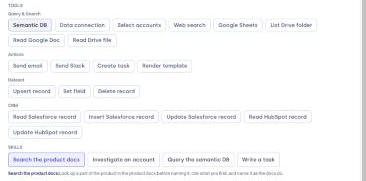
From there, the step searches your docs for the customer's wording and your product's own terms, reads the parts that bear on the question, and answers with a link back to the source.
If you want this step reading only the docs and nothing else, say so in the Semantic DB tool's description (for example, "query the product documents and no other table"). The agent follows that guidance.
For the tables behind the scenes and the exact search pattern, see the reference page: Grounding agents in your product docs.
From Claude or any MCP client
You don't have to be inside FunnelStory to use your docs. With the MCP server connected, Claude — or any MCP client — can search the same documents. Ask a question about your product, and it looks through your docs and answers with a citation.
Point it at the schema and usage guides first so it knows what's there, then let it search. For questions tied to time ("what changed this quarter?"), the query can be scoped to a workspace period. See Available MCP tools for query_semantic_db and how to query the docs.
Getting better answers
A few habits make every one of these more reliable:
- Ask more than one way. Search with the customer's words, your product's own names for things, and the exact error or setting. The search is literal, so a synonym can be the difference between finding an answer and missing it.
- Treat "not found" as "not found." It's never evidence that something is impossible or unsupported.
- Trust what's cited. The strongest answers quote a document and link to it — that's the sign the AI read your docs rather than guessing.
Related
- Documentation site and Uploaded documents — connect your docs.
- Grounding agents in your product docs — the tables and search pattern behind this.
- Design an Agent: Detect, Investigate, Act — how an agent reads an account before it decides.
- Available MCP tools — querying FunnelStory from Claude.