Sharing Data Apps
Data app sharing lets you show a FunnelStory data app for a specific account in another tool or workflow. Create a share, choose what viewers can see, and copy either a share URL or an HTML embed snippet.
New to data apps? Start with the Data Apps overview for what a data app is and how to define one.
How data app sharing works
A data app share combines the data app, the views and data version viewers can access, the account to display, and the access method into one reusable link or embed.
| Choice | Controls |
|---|---|
| Views | Which workspace views appear in the shared data app. |
| Data shown | Whether viewers see published snapshots, working drafts, or both. |
| Access | Whether anyone with the share key can open the share or viewers must sign in. |
| Account | Which customer account the data app loads. A reusable URL uses {accountId}; an account-specific URL includes the ID already. |
| Share key | The secret value that authorizes access to the share. |
Before you start
You’ll need:
- A data app under Configure → Data Apps.
- At least one workspace view that you want to make available through the share.
- Permission to manage data app sharing. In most workspaces, this is an Admin, Data Admin, or Super Admin permission.
- The FunnelStory account ID that the embed should display.
Only workspace views can be selected when you create a share. Account-specific views that aren’t available to the workspace aren’t included in the share setup.
Create a share
-
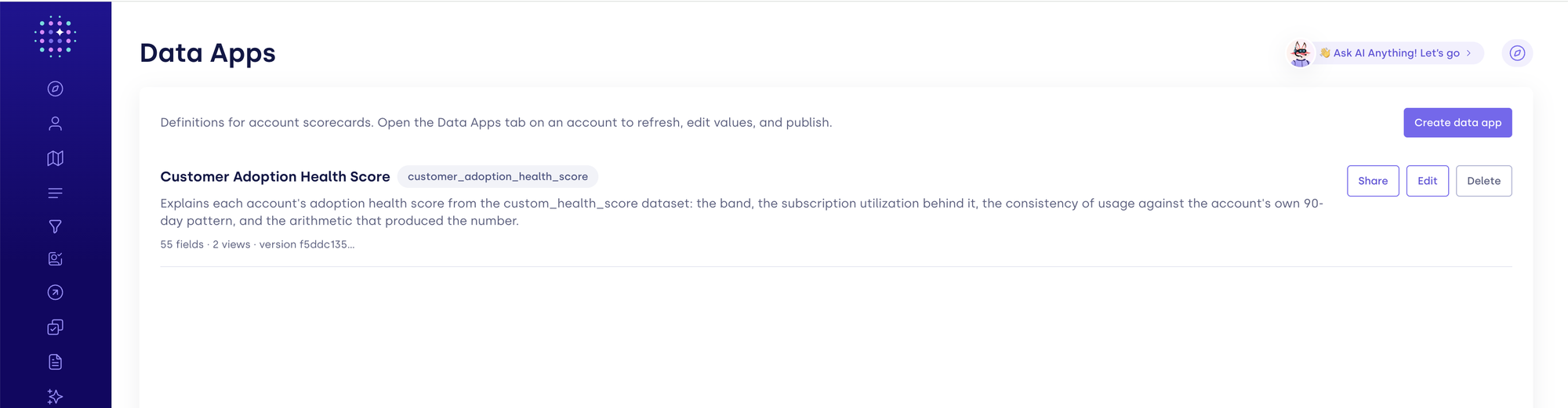
Go to Configure → Data Apps and select Share on the data app you want to share.
-
Select the workspace Views that should be available in the shared data app.
-
Choose Data shown:
Option What viewers can see Published snapshots The latest published version of the data app. Working drafts The current working version of the data app. Published and drafts Both published snapshots and working drafts, where available. Prefer Working drafts for data that updates in the background on its own (a flow or a sync) rather than by someone manually publishing — viewers then always see the latest values. Use Published snapshots when you want viewers to see only versions someone has explicitly published, and remember a snapshot won't reflect new data until it's published again.
-
Choose Access:
Option What it means Public — anyone with the link Anyone who has the share key can open the shared data app. Private — sign-in required Viewers must be members of your FunnelStory workspace and sign in before viewing. 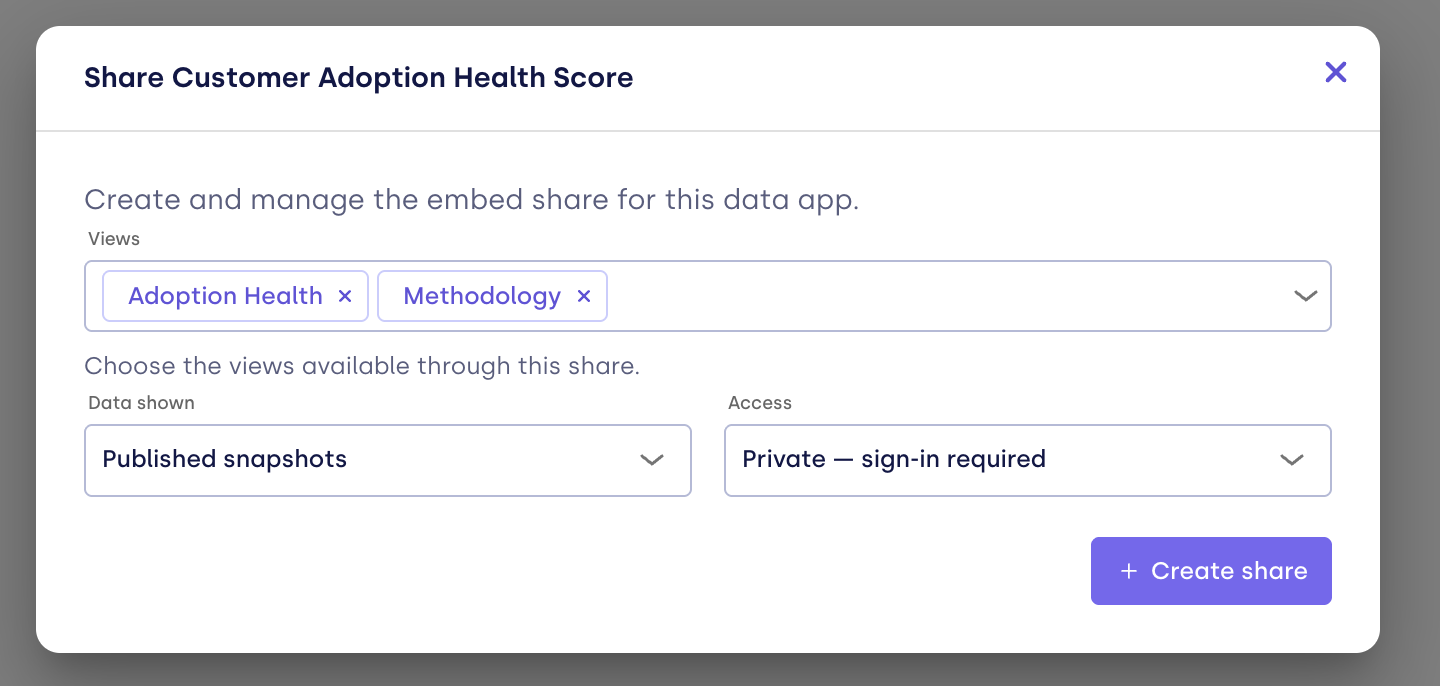
-
Select Create share.
Copy the share URL or embed code
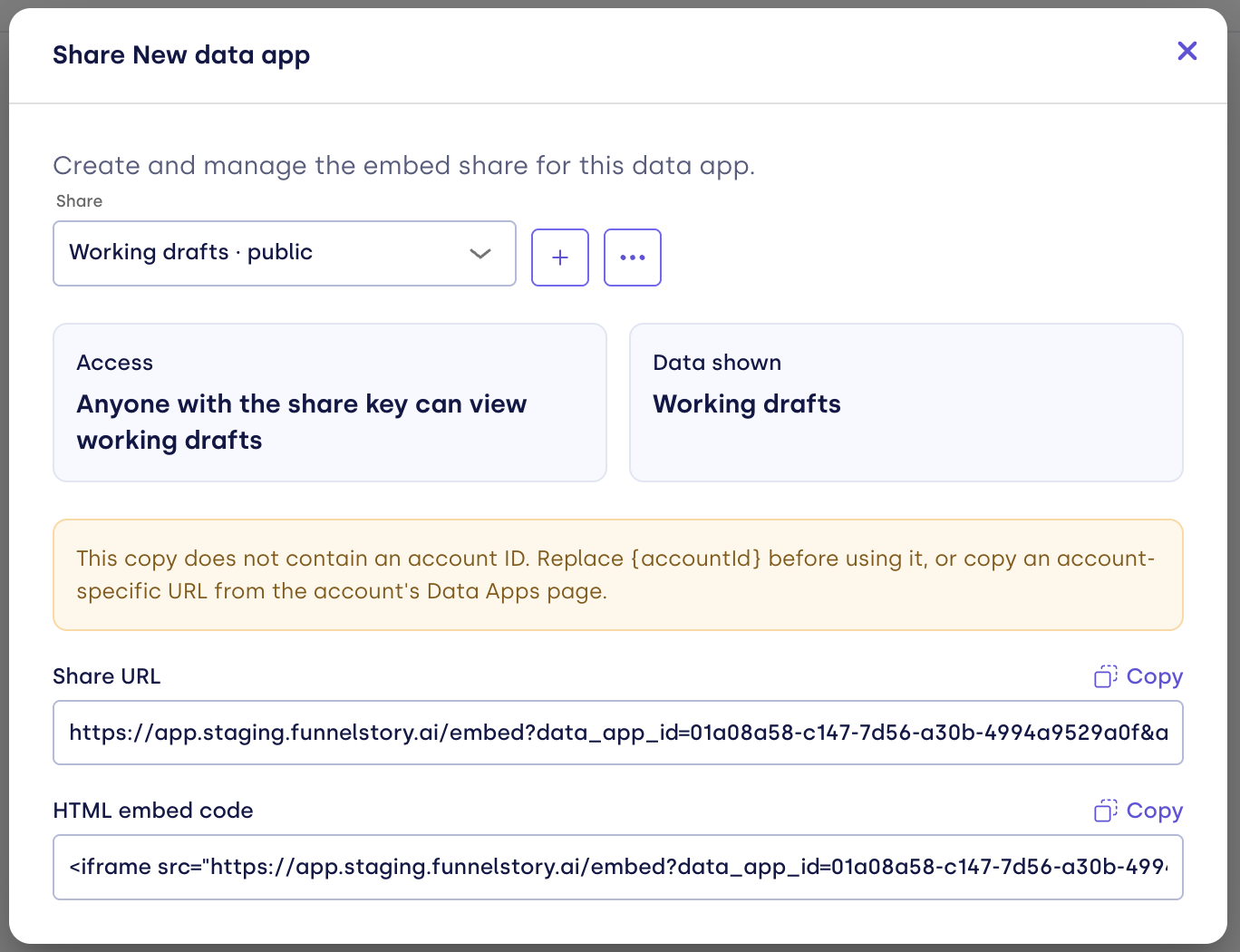
After the share is created, the Embed sharing dialog shows:
- Share URL — a URL you can open directly or use as an iframe source.
- HTML embed code — a ready-to-paste iframe snippet for a supported host.
The generated share uses an account placeholder so you can reuse it for different accounts. Replace {accountId} with the FunnelStory account ID before using the URL or snippet.
For example:
https://app.funnelstory.ai/embed?data_app_id=<data-app-id>&account_id=<account-id>#<share-key>
The share key is the value after #. Treat it like a password: anyone who has the key can use the share according to its access setting.
Use the HTML embed code
- Select Copy next to HTML embed code.
- Replace
{accountId}in the copied snippet with the account ID you want to display. - Paste the snippet into the supported tool or page where you want the data app to appear.
The generated snippet includes an optional script that can read account_id from the host page URL. Use that script when the host page already contains the account ID and you want the iframe to update dynamically.
Supported hosts
FunnelStory allows the embed to be framed only by these hosts:
| Host | Notes |
|---|---|
ClickUp (app.clickup.com) | Paste the HTML embed code as-is. |
HubSpot (app.hubspot.com) | For example, an app card that opens the embed in an iframe modal. Use the share_key query-parameter format described in Hosts that change URL fragments. |
Other sites can't display the embed in an iframe; the browser blocks it. You can still open a share URL directly in a browser tab from anywhere. For a private share, the sign-in step opens in a pop-up window, so allow pop-ups for FunnelStory in the host tool.
Use a direct share URL
- Select Copy next to Share URL.
- Replace
{accountId}with a real account ID. - Open the URL in a browser or use it as the source of an iframe.
Hosts that change URL fragments
The standard generated URL keeps the share key in the URL fragment (#share-key). Some embedding hosts can replace or append their own fragment. If that happens, pass the share key as the share_key query parameter instead:
https://app.funnelstory.ai/embed?data_app_id=<data-app-id>&account_id=<account-id>&share_key=<share-key>
HubSpot is the known case: its iframe modal action appends its own fragment to the iframe URL, which would otherwise be read as the share key. If you use the FunnelStory app card on HubSpot records, see HubSpot App Card. To embed the iframe in HubSpot yourself:
- Copy the Share URL and replace
{accountId}with the account ID. - Remove the
#<share-key>part from the end of the URL. - Add
&share_key=<share-key>to the query string, using the same key. - Use the resulting URL as the iframe source in HubSpot.
When both are present, FunnelStory uses the share_key query parameter and ignores the fragment.
Copy an account-specific URL
If you’re already viewing a specific account, you can copy a URL without replacing {accountId} manually:
- Open the account’s Data Apps tab.
- Open the settings menu in the data app toolbar.
- Select Copy embed URL for the share you want to use.
- Paste the copied URL into the destination tool or page.
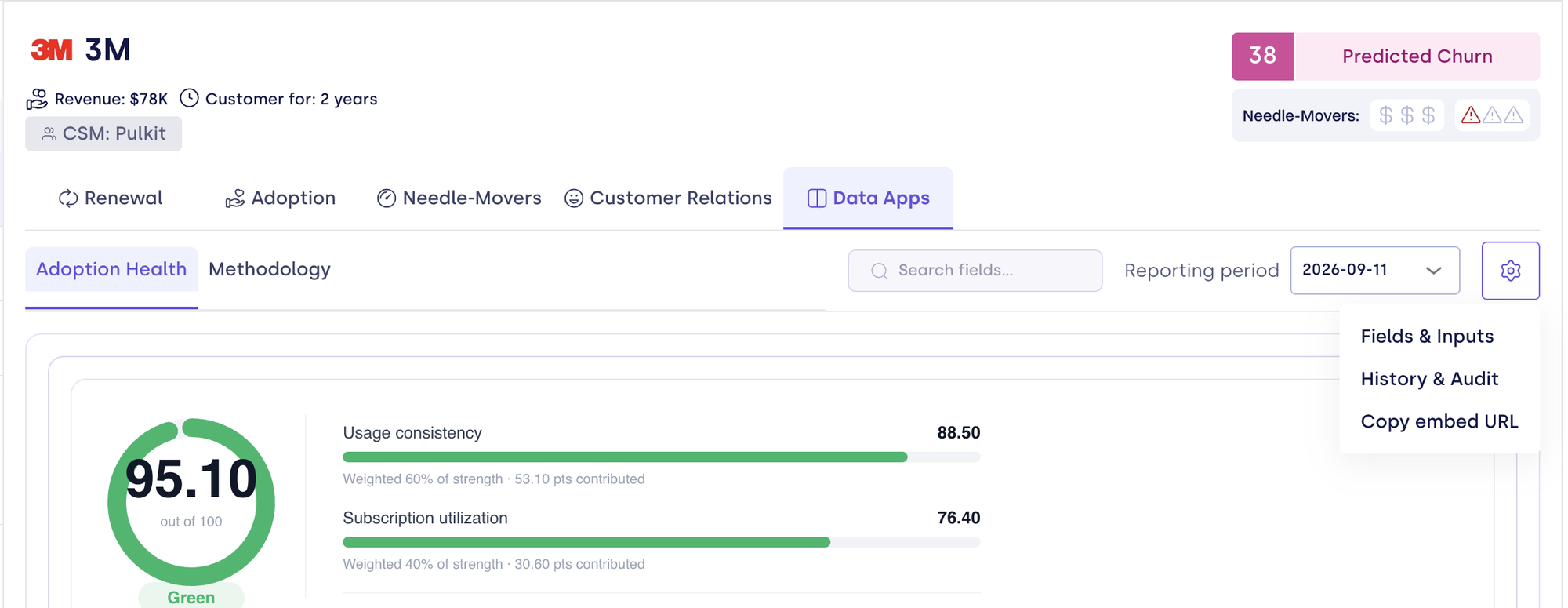
This URL already contains the current account ID. It’s useful when you’re sharing one account’s data app from a CRM record, account page, or other account-specific workflow.
Manage existing shares
The Share selector in the Embed sharing dialog lists the shares created for the data app. Select a share to view its access setting, data setting, URL, and embed code.
Use the actions menu to manage the selected share:
- Rotate — creates a new share key and immediately invalidates the old key. Copy the new URL or embed code after rotating.
- Revoke — stops access through the share. You can create another share later.
- Delete — permanently removes the share configuration. Create a new share if you need access again.
- Create another share — creates a separate share with its own views, access setting, data setting, and key.
Access and editing behavior
- A public share can be opened by anyone with the share key.
- A private share requires the viewer to sign in to a FunnelStory workspace that has access.
- The share key controls access to the shared data app. Editing also requires an authenticated session and the appropriate write permission.
- A share only exposes the views selected during share creation. To change the available views, create another share with the desired selection.
Troubleshooting
The embed says that parameters are missing
Check that the URL contains:
data_app_idaccount_id- The share key, either after
#or inshare_key
If you copied a template URL or snippet, replace {accountId} with a real account ID.
The share is unavailable
The share may have been revoked, deleted, or rotated. Return to Configure → Data Apps → Share, select the current share, and copy the latest URL or embed code.
The embed says that no snapshot is available
The selected data setting may not have a matching published snapshot or working draft for the account. Check the data app’s publish state and the share’s Data shown setting.
A private share asks the viewer to sign in
That’s expected. Private shares are limited to signed-in FunnelStory workspace members with access to the workspace.