HubSpot App Card
The FunnelStory app card is a HubSpot CRM card you can add to the sidebar of deal, company, or contact records so reps and CS teams see a live FunnelStory data app right next to the record they're already working in — no separate tab, no login prompt if the underlying share is public.
The card is a single, global HubSpot app install — it isn't customized per FunnelStory workspace or account by HubSpot itself. Which data app it shows, and for which account, is controlled entirely by properties you set on each HubSpot record. This page covers adding the card and wiring up those properties. To create the underlying share the card points to, see Sharing Data Apps.
How it works
- You create a data app share (public or private) the same way you would for any other embed — see Sharing Data Apps.
- You add three custom properties to the HubSpot object type you want the card on (for example, Deal), and populate them on each record with values from that share's URL.
- You add the FunnelStory card to the sidebar for that object type in HubSpot.
- HubSpot renders the card using the property values on the record currently being viewed. If any of the pinned fields are configured, the card shows those values directly; otherwise it shows a button to launch the full data app.
Because HubSpot only gives the card the current record's own properties, the card has no other way to know which data app or account to load — the three properties below are what connect a HubSpot record to a FunnelStory data app.
Add the card in HubSpot
Sidebar customization in HubSpot applies to the whole object type, not a single record — once you add the card while editing one view, it appears on the sidebar of every record that uses that view (subject to the properties described below being populated).
-
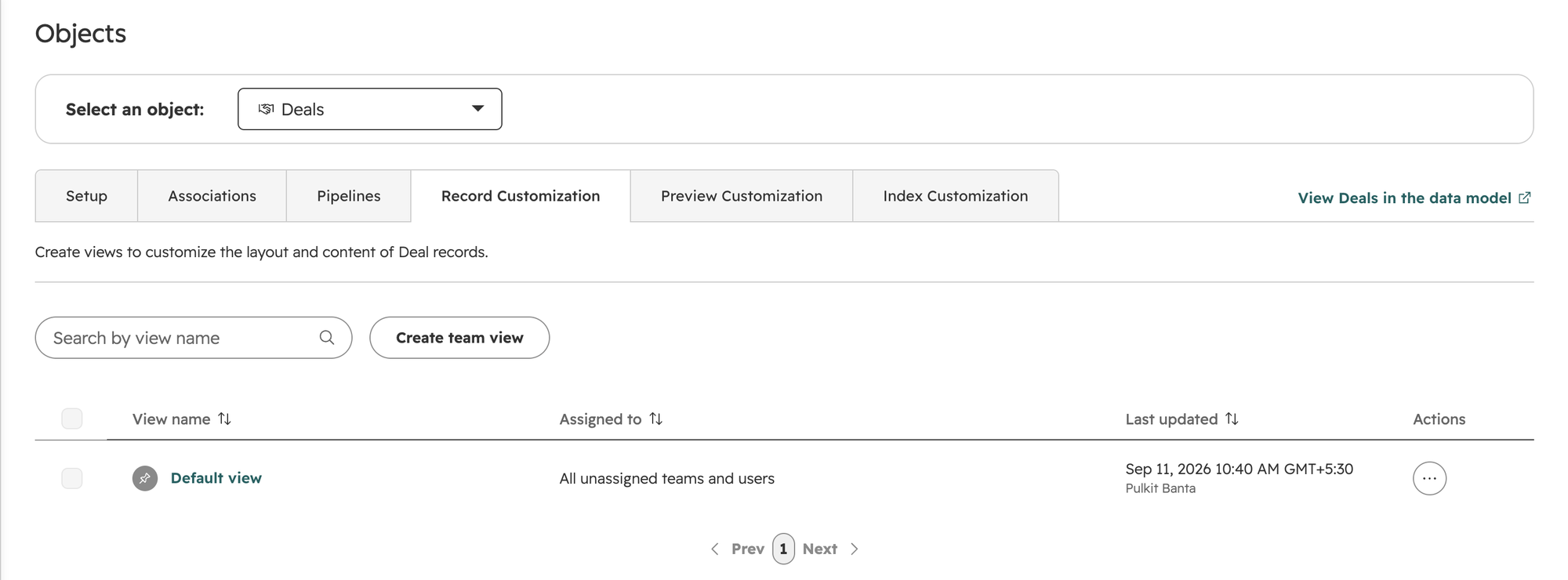
Open a record of the object type you want the card on (for example, a Deal) and select Customize in the top right.

-
Select the view you want to edit — most workspaces just have a Default view.
-
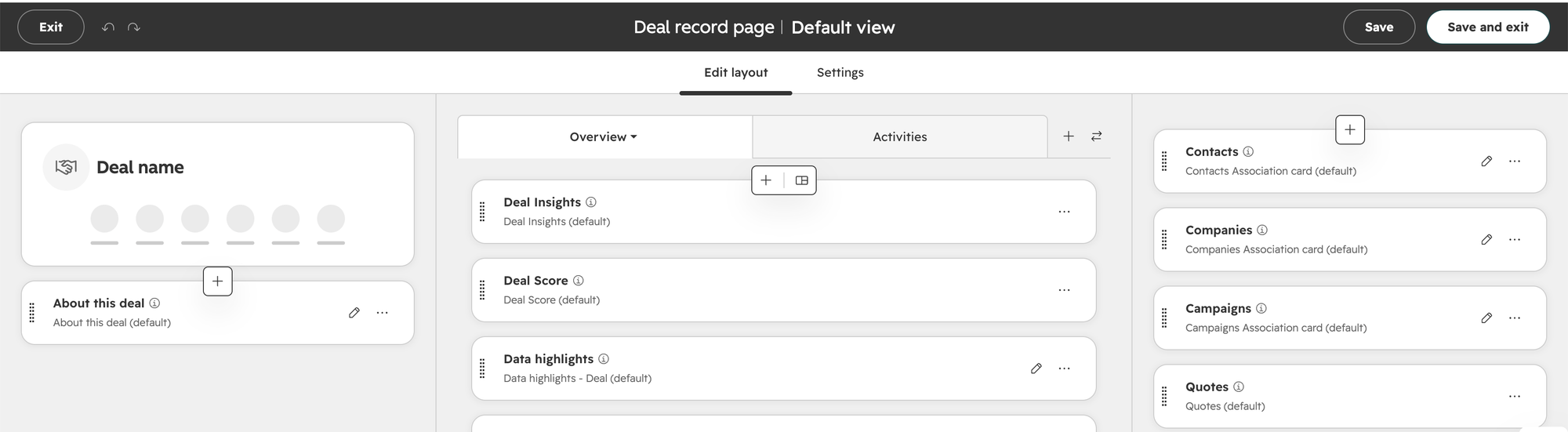
In the layout editor, select the + above the right sidebar cards (Contacts, Companies, etc.) to add a new card.
-
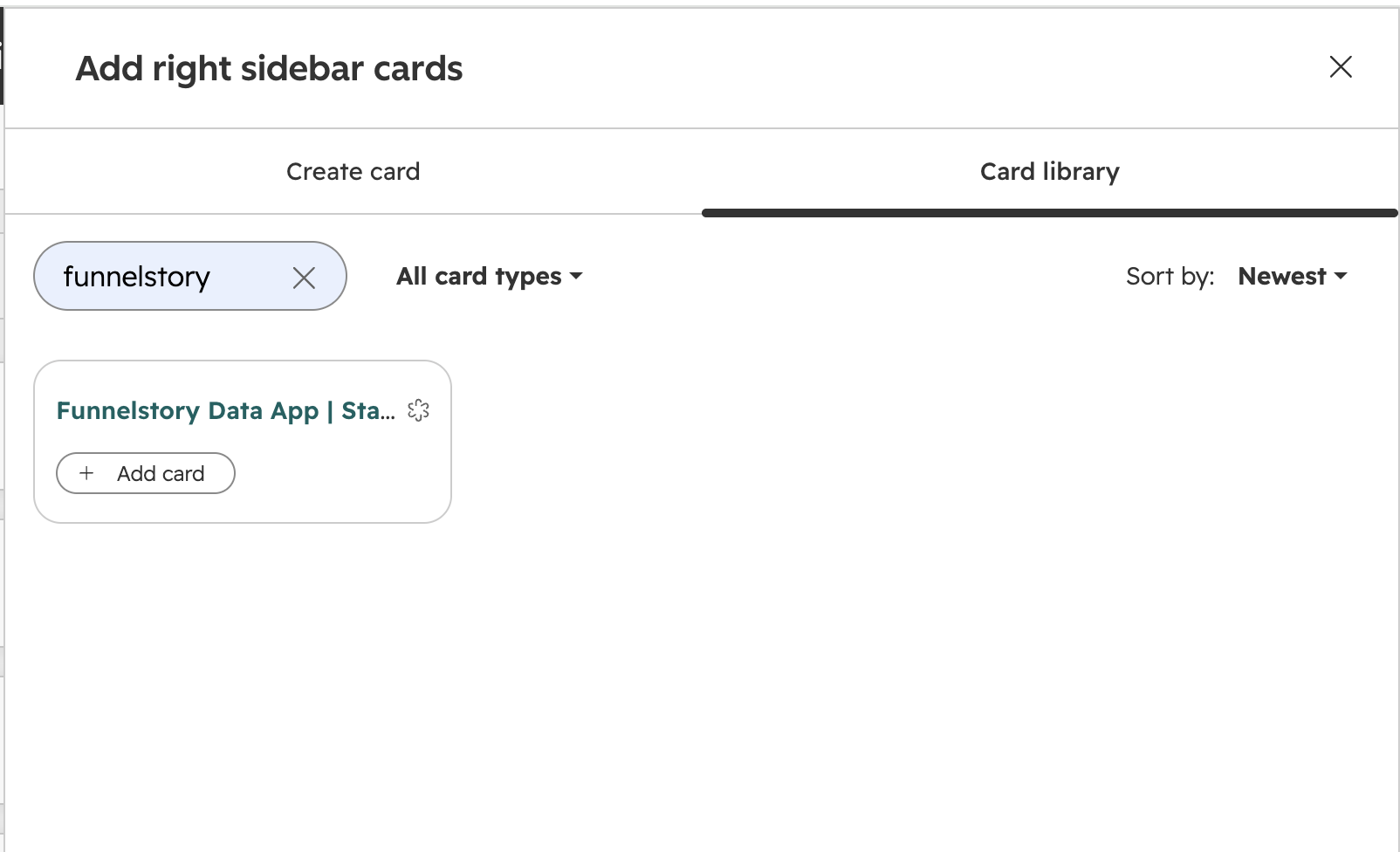
In Add right sidebar cards, switch to Card library, search for funnelstory, and select Add card on the FunnelStory data app card.
-
Select Save and exit.
Open any deal for an account and the FunnelStory card now appears in the right sidebar.
Required HubSpot properties
The card reads three custom properties from the record it's shown on:
| Property | Required | What it's for |
|---|---|---|
funnelstory_data_app_id | Yes | The data app to load. This is the data_app_id value from a data app share URL. |
funnelstory_share_key | Yes | Authorizes access to that share. This is the value after # in the share URL (or the share_key query parameter). |
funnelstory_account_id | No | The FunnelStory account whose data to display. Without it, the card can't resolve a specific account and won't show account data. |
All three values come from the same share URL:
https://app.funnelstory.ai/embed?data_app_id=<data-app-id>&account_id=<account-id>#<share-key>
If you created a reusable share (with the {accountId} placeholder — see Sharing Data Apps), set funnelstory_account_id to the real FunnelStory account ID for each HubSpot record rather than the placeholder.
Populating the properties on records
These properties need a value on every HubSpot record you want the card to work on — HubSpot doesn't fill them in automatically. Set them up as a flow: ask an AI agent (Claude, ChatGPT, or another agent connected to the FunnelStory MCP server) to build one for you rather than writing the flow JSON by hand.
Give the agent the share URL for the data app and describe what you want:
- Take the data app's share URL as input, and pull
funnelstory_data_app_idandfunnelstory_share_keyout of it. - Write those two values, plus
funnelstory_account_id, onto the target HubSpot object (deal, company, or contact) using thehubspot.update_recordfunction. - If the HubSpot record's ID isn't the same as the FunnelStory account ID (for example, a deal ID doesn't match its account), have the flow query
select * from accountsto map each HubSpot record to the right FunnelStory account, so it sets the correctfunnelstory_account_idper record.
See the Flow authoring guide for how flows are structured, and HubSpot sync for how FunnelStory already links accounts to HubSpot deals and companies.
Pinned properties
By default, the card shows a launch button that opens the full data app in an iframe. You can instead have the card show up to a few key values directly on the card face — for example an adoption score and an expansion score — without the viewer needing to open the app at all.
To pin a value, mark the corresponding field as pinned in the data app's configuration: set pinned: true on that field, either by asking Claude to configure it (through the FunnelStory MCP server) or by going to Configure → Data Apps at app.funnelstory.ai/configure/data-apps, editing the data app, and setting pinned: true on the field. Pin two or three fields — whatever best summarizes the account at a glance.
Once the properties are set and a field is pinned, the card on the deal shows those values directly, with a View App button to open the full data app for more detail:
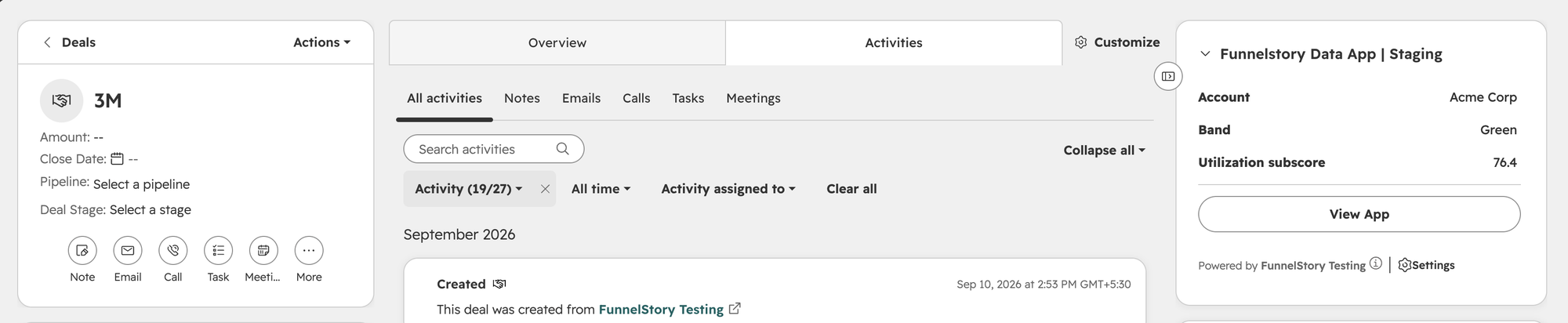
Pinned properties only render when the share behind the card has Access set to Public — anyone with the link (see Access settings). HubSpot can't sign in as a FunnelStory user, so a Private — sign-in required share has no way to authenticate the card, and none of its data — pinned or otherwise — will show. Viewers would instead need to open the app separately and sign in.
Troubleshooting
| Symptom | Likely cause | Fix |
|---|---|---|
| Card shows nothing, or an error, on a record | One of funnelstory_data_app_id or funnelstory_share_key is missing on that record | Confirm both properties are populated; check the flow or sync that's supposed to set them |
| Card loads but shows the wrong account's data | funnelstory_account_id is missing or incorrect | Set funnelstory_account_id to the correct FunnelStory account ID for that record |
| Pinned values don't appear, only a launch button | No fields are marked pinned: true in the data app config | Add pinned: true to the fields you want shown, in Configure → Data Apps |
| Pinned values still don't appear even after pinning fields | The share is Private — sign-in required | Change the share's Access to Public — anyone with the link, or accept that viewers must open and sign in to see data |