Products Catalog
The Products page under Configuration is your workspace's product catalog: the products you sell, and the features that can be bought with each one. Use it to add a product that doesn't come from a data model, or to define features once so that subscriptions can grant them and account metrics can measure them.
How it works
Every product has a Product ID, a Name, and an optional Description. Products usually arrive from your Products model, but you can also create them here.
A product can list any number of features. Each feature is one of two kinds:
| Kind | Meaning | How a subscription grants it |
|---|---|---|
| Capability | Something an account either has or doesn't, such as SSO. | The subscription lists the feature's key in its features property. |
| Amount | Something sold as a quantity with an allowance, such as API calls. | The subscription's dimensions hold the allowance under the feature's key. |
A feature can also list the account metric IDs that measure it. An account metric that no feature lists stays a measure of the product as a whole. See Subscriptions for how entitlements are mapped.
Viewing the catalog
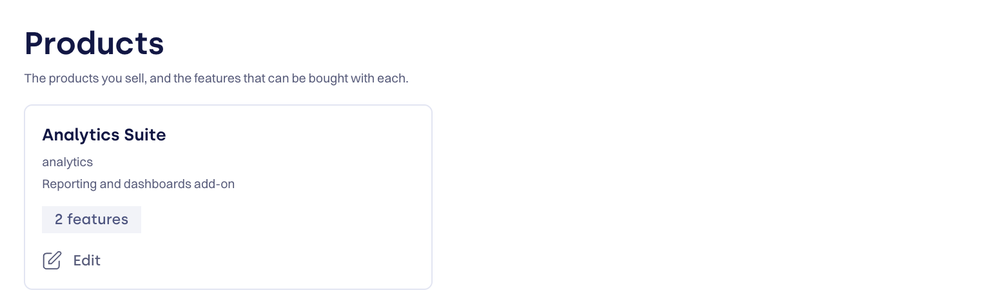
Go to Configuration → Products. Each product appears as a card showing its name, Product ID, description, how many features it has, and a From data model badge when a data model supplies it.
The Configuration menu isn't available to users with the Account User or Manager role.
Creating or editing a product
- Go to Configuration → Products.
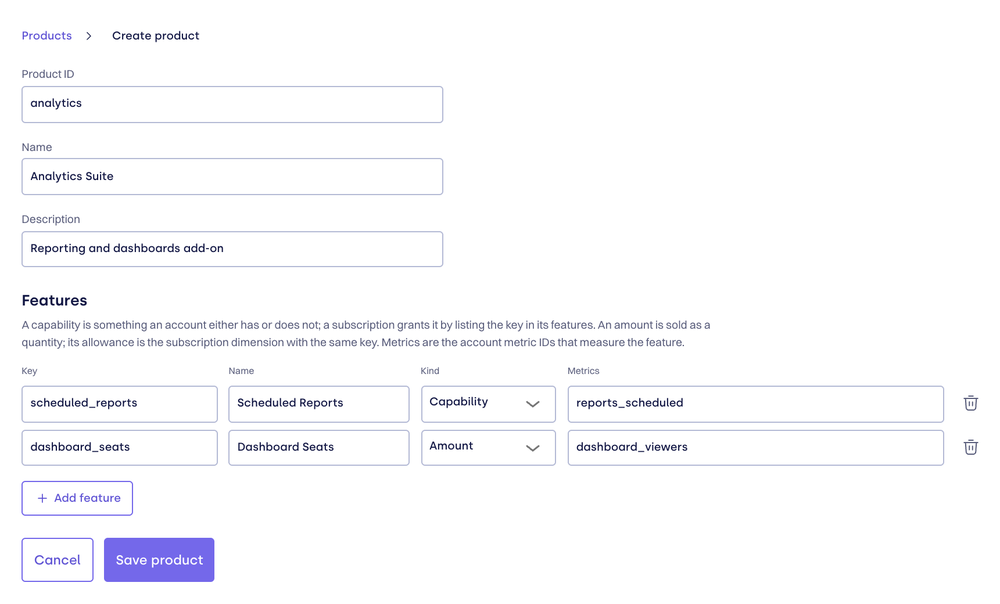
- Click Create product, or click Edit on an existing product's card.
- Fill in the product fields:
| Field | Notes |
|---|---|
| Product ID | Required. The stable identifier your other models use for this product. It can't be changed after the product is created. |
| Name | Required. The display name. |
| Description | Optional. |
- Under Features, click Add feature for each feature and fill in its row:
| Column | Notes |
|---|---|
| Key | Required. Lowercase letters, digits, and underscores, starting with a letter — for example analytics_reports. Keys must be unique across every product in the workspace, because subscriptions and metrics refer to a feature by its key alone. |
| Name | Required. The display name, such as Reports. |
| Kind | Capability (the default) or Amount. |
| Metrics | Optional. Comma-separated account metric IDs that measure the feature, such as reports_run, reports_shared. |
- Click Save product.
A malformed key, or a key used twice on the same product, is flagged as you type. Missing required fields are flagged when you save. If another product already uses a key, the save fails with an error naming that product.
To remove a feature, click the trash icon at the end of its row, then save.
Products that come from a data model
When a product comes from a data model, the editor shows "This product comes from a data model. Features set here stay unless the model maps a features column."
- If the Products model doesn't map a
featurescolumn, or a row's value is empty, the features you define here survive every refresh. - If the model maps
featureswith a non-empty list, that list replaces the product's features on each refresh.
Pick one place to own a product's features — the model query or this page — so the two don't overwrite each other.
Related
- Products model — syncing products and their features from your data
- Subscriptions model — granting capability features and amount allowances
- Account metrics model — the metrics a feature can list