Activate and Measure
Activating a cohort pair turns a proposal into a measured run: FunnelStory locks the at-risk accounts and re-measures them every day until the run ends.
Activating a cohort pair
- On a proposed pair, choose how long it should run under Run for: Month (30 days), Quarter (90 days, the default), or Six Months (180 days).
- Click Activate.
Activation freezes the pair's definition and locks today's at-risk roster. The card then shows Activated · Quarter (or the duration you chose). An agent with at least one activated pair moves from Drafts to the Activated tab and can no longer be edited.
The Activated tab
The Activated tab lists every activated cohort pair:
| Column | Description |
|---|---|
| Outcome Agent | The cohort's label and how long it runs. |
| Outcome Target | Renewal or Expansion. |
| Audience | Accounts on the locked roster. |
| Activated / Terminates | When the run started and when it ends. |
| Result | Progress toward moving the roster into the target cohort. |
| Cohort Analysis | Opens the pair's cohort analysis. |
Pause, Terminate, and Move to Draft aren't available yet.
The activated report
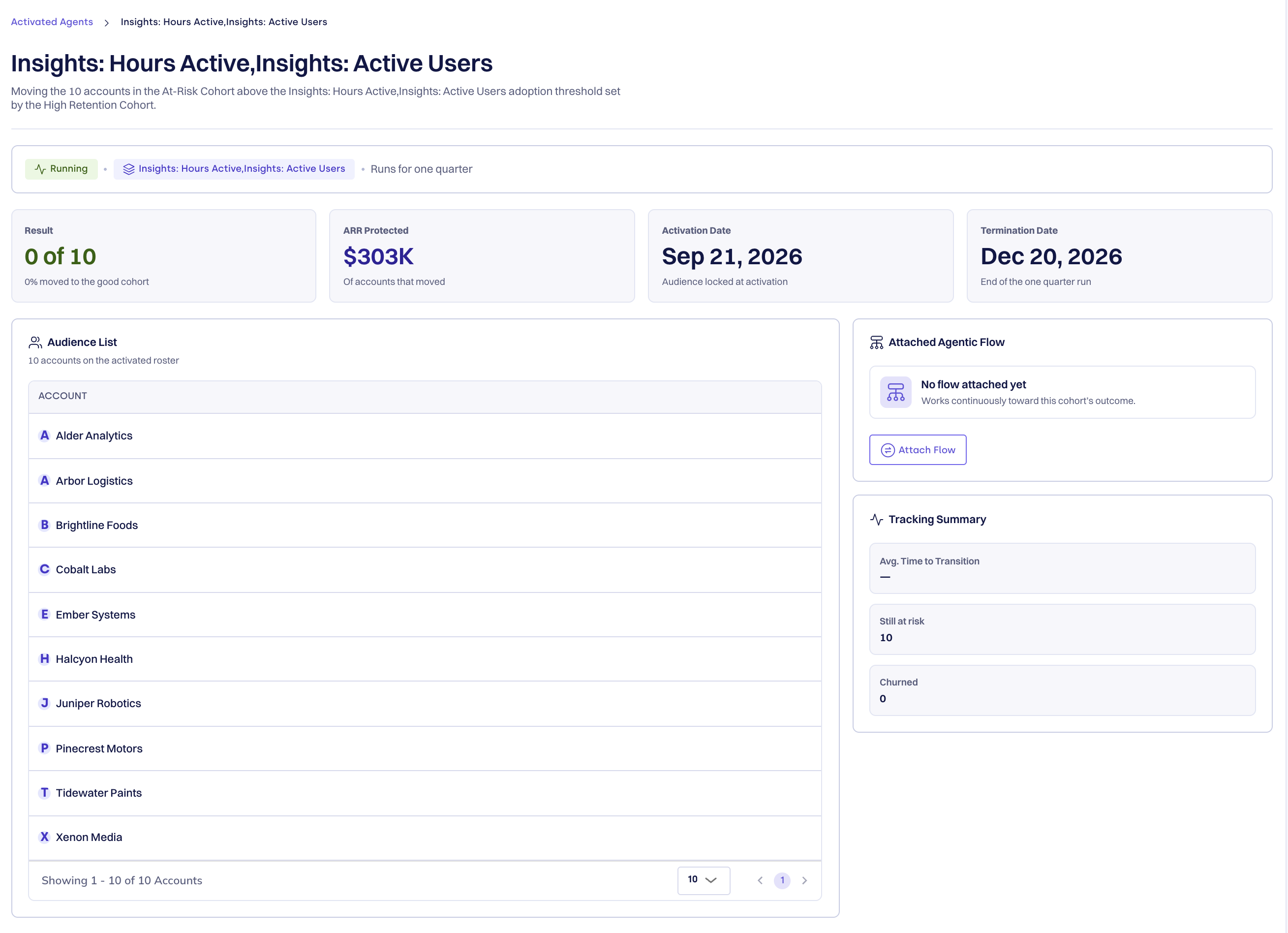
Click a row to open its report. FunnelStory re-measures the locked roster once a day using the frozen definition, so the goalposts don't move mid-run.
| Tile | Meaning |
|---|---|
| Result | How many roster accounts reached the target adoption, out of the roster, and the percentage. |
| ARR Protected | The revenue FunnelStory attributes to the run, estimated from the roster's ARR at activation and the pair's historical rate gap. |
| Activation Date | When the roster was locked. |
| Termination Date | When the run ends. |
Below the tiles:
- Audience List — the locked roster, paginated.
- Tracking Summary — Avg. Time to Transition (days from activation to reaching target adoption), Still at risk, and Churned.
- Attached Agentic Flow — the AI Agent flow whose results this cohort measures.
Attaching a flow
Attach the AI Agent flow that's working toward this cohort's outcome, so the cohort measures that agent's results. The cohort doesn't run the flow: the agent keeps running independently on its own triggers, and the cohort tracks whether the outcome it's working toward actually moves.
To attach a flow:
- Open the activated cohort's report.
- In Attached Agentic Flow, click Attach Flow and pick a flow from your workspace.
- To swap it later, click Change Flow. Click Open Flow to open the attached flow in the flow builder.
A flow can be attached only to an activated cohort. If an attached flow is deleted, the card goes back to No flow attached yet.