Action Cards
Action Cards are AI-generated task recommendations that tell a CSM exactly what to do next for an account, why it matters, and how to do it — including pre-drafted email and Slack outreach. They appear on individual account pages and in the Focus Areas Actions tab.
How Action Cards Are Created
Action Cards are created by AI Agents — automated workflow agents that run on a schedule or in response to signals. Each agent has access to a create_task tool. When the agent determines that a task is warranted for an account, it calls that tool with a title, a Markdown description, and an optional due date. The platform saves the task and marks it as agent-created (created_by.type = "agent").
The agent's description becomes the structured body of the card. It encodes the signal that triggered the recommendation, the reasoning behind it, next steps, and any pre-drafted outreach (email subject/body or Slack message). FunnelStory parses this content and renders each section in the card UI.
Only tasks created by agents appear as Action Cards. Tasks created manually by users appear in the standard Tasks view, not as Action Cards.
Two paths create Action Cards without you writing an agent yourself:
- Needle Mover autosuggest runs on a schedule with no agent configuration required — see Autosuggested action cards to turn it on.
- The Investigation and Triage chat, inline on a needle mover's detail view, can call
create_taskdirectly from the conversation — ask it to look into the situation and the card appears in the chat as it's built, outreach draft included. The card is created by the agent and assigned to you, so it shows on the account's Actions tab and on the Focus Areas Actions tab.
Tasks you create through an MCP client are your own tasks, not Action Cards.
Reading an Action Card
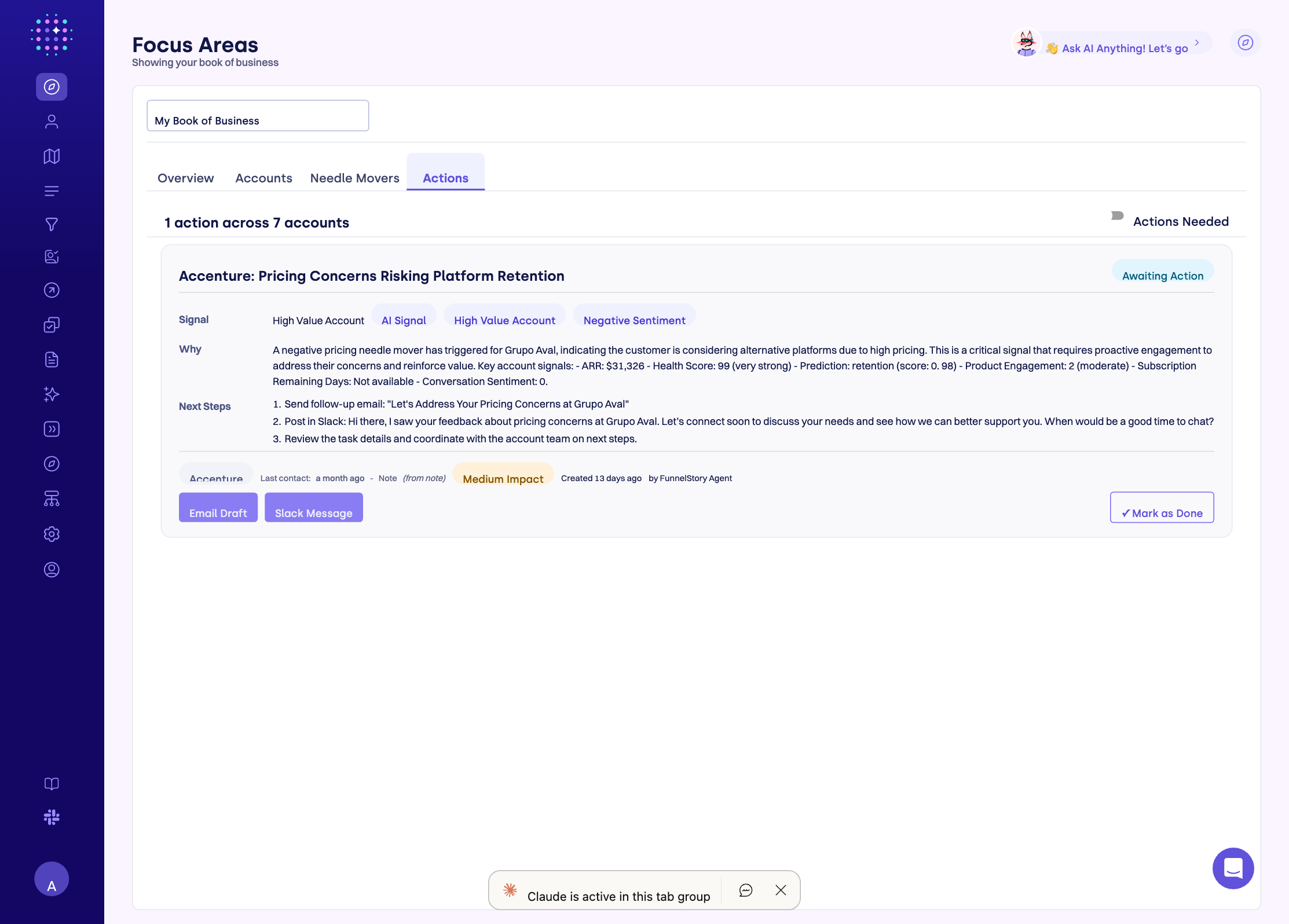
Each card contains the following sections:
| Section | What it shows |
|---|---|
| Title | The recommended action — concise, actionable |
| Status badge | Current state: Awaiting Action, In Progress, Completed, Expired, Canceled, or Closed |
| Signal | The trigger: a Needle Mover, support conversation, or note. Linked to the source when available. |
| Why | The agent's reasoning — a short summary of why this action is recommended now |
| Next Steps | One or more numbered steps the CSM should take |
| Account badge | The account this action belongs to |
| Impact badge | Priority level of the action (when set by the agent) |
| Created timestamp | When the card was generated, and by whom — an agent's name for automated cards, or a person's name when created through the Investigation and Triage chat |
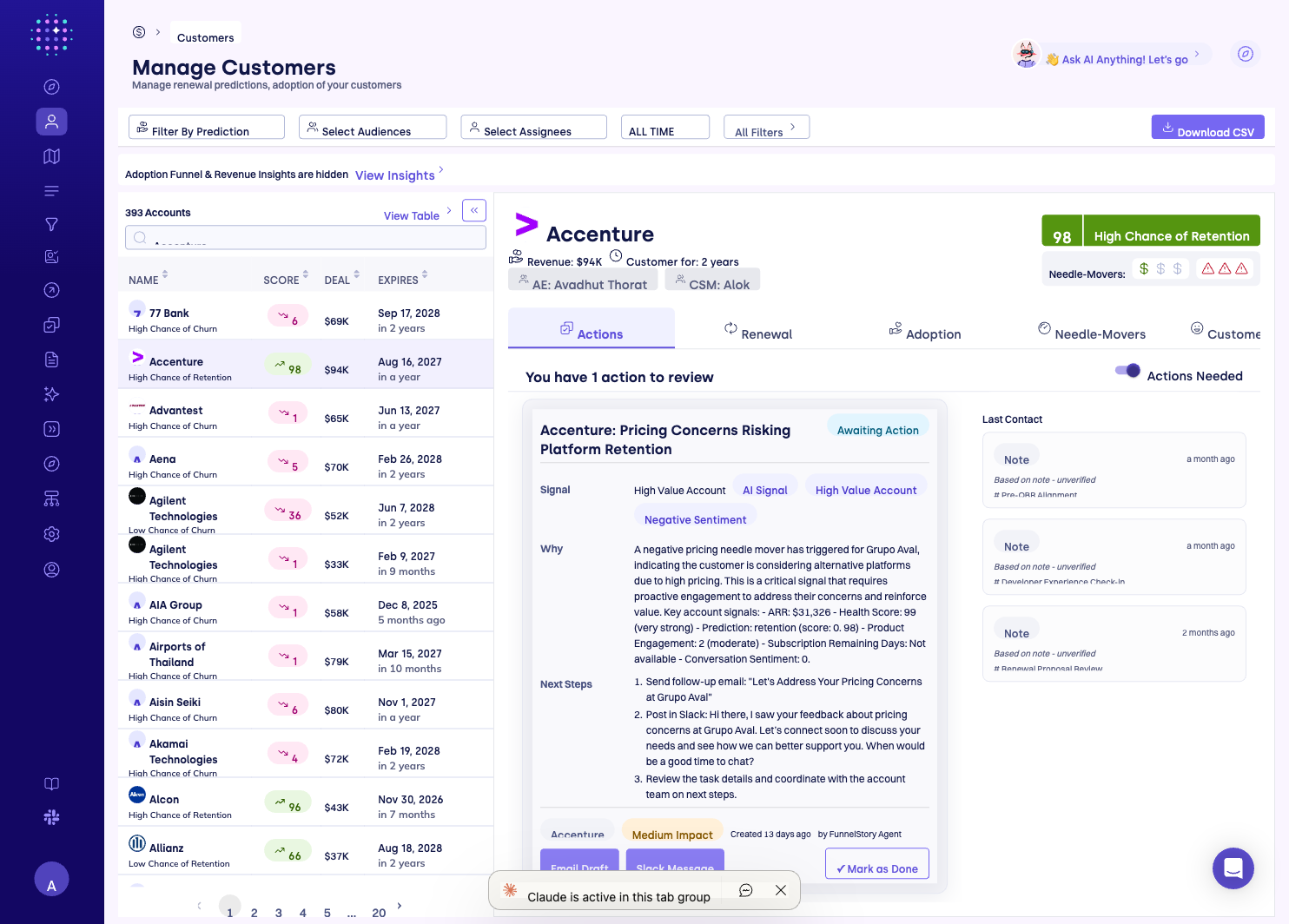
When Action Cards are shown on an individual account page, a Last Contacts panel appears alongside the card list, showing recent contact activity for that account.
Taking Action
Each card offers two ways to act directly from the UI:
-
Email Draft — Opens a compose panel with editable To, Cc, Bcc, Subject, and Message fields, pre-filled by the agent. Clicking the button marks the task as In Progress. From here you can:
- Send Email — sends the draft from FunnelStory. Clicking it asks "Send this email now?"; click Yes, send to send or Cancel to go back, and a toast confirms "Email sent". If you've connected Gmail (profile menu → Gmail Settings → Connect Gmail), the email goes out from your own Gmail address. Otherwise FunnelStory sends it from its no-reply address with Reply-To set to your address, so replies still land in your inbox. This button appears only when the workspace has turned on Send Email from FunnelStory under Configure → Features → Tasks → Action Emails — it's off by default, and when it's off the draft can only be copied or opened in your mail client.
- Compose in email client — opens the same draft in your own mail client instead of sending from FunnelStory.
- Copy email draft — copies the draft to your clipboard.
Once sent, the draft locks: the button is replaced with a Sent label showing when it went out, and the send is recorded as an entry on the needle mover's activity timeline, including Opens and Clicks badges as the recipient engages with it (no bounce tracking yet).
-
Slack Message — Opens a read-only panel with the drafted message and a Copy Message button. Sending to Slack from FunnelStory isn't offered yet — copy the message and paste it into Slack yourself. Copying marks the task as In Progress.
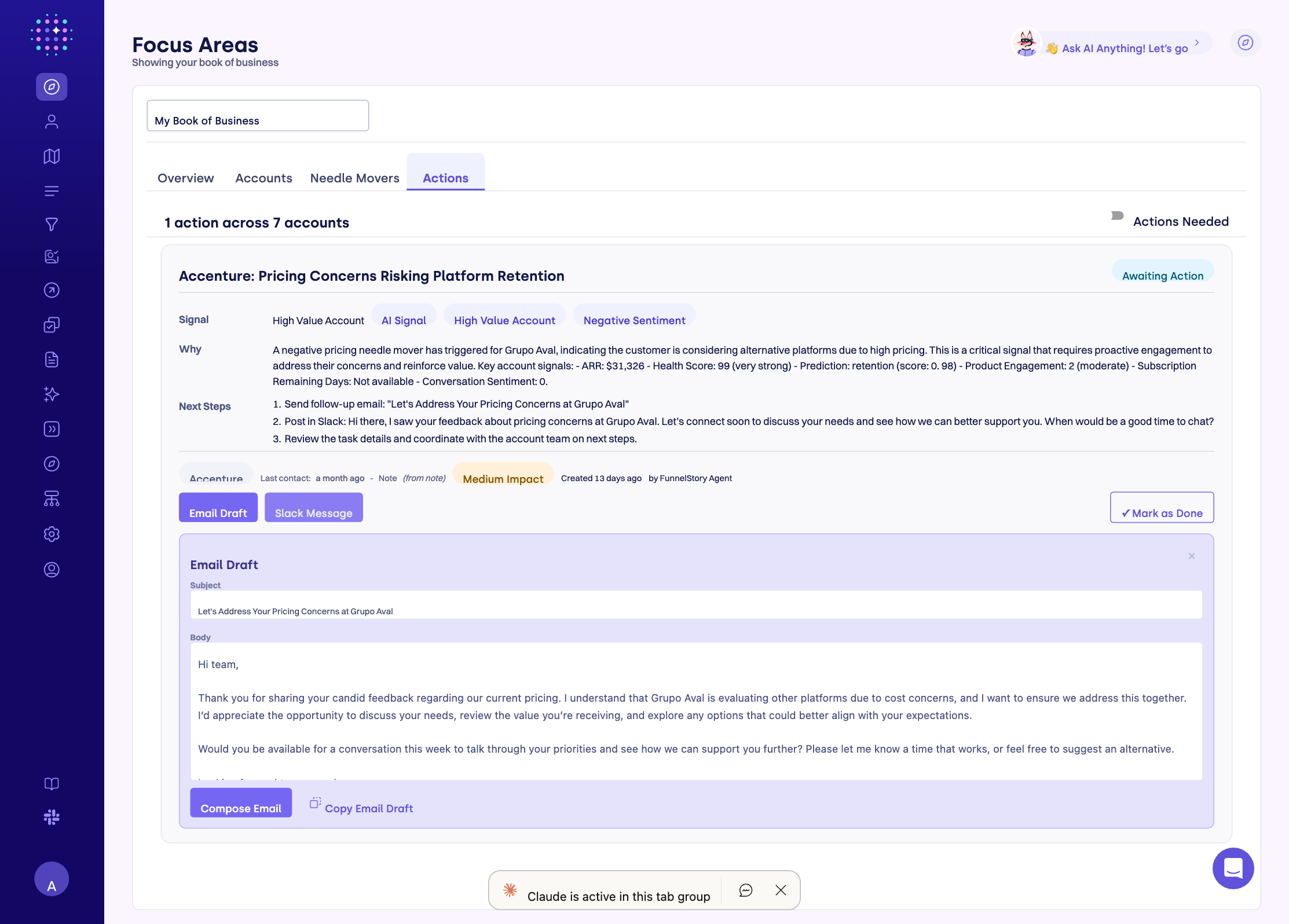
Not every card will have both options — the agent includes only the outreach types it determined were appropriate. Recipients must be a known CRM contact, a workspace member, or share the account's email domain — FunnelStory validates this before sending.
At the bottom of each card:
- Mark as Done — Moves the task to Completed status.
- Mark as Not Done — Reverts a Completed task back to Awaiting Action.
Status Lifecycle
Awaiting Action  →  In Progress  →  Completed
                                  ↘  Expired  (if the task passes its due date unactioned)
Tasks can also be Canceled or Closed when dismissed without completing the action.
Where Action Cards Appear
On an account page — The Actions tab on any account's detail view shows cards assigned to that account. A header line shows the total count (for example, "You have 5 actions to review"). An Actions Needed toggle (on by default) filters the list to open tasks only (Awaiting Action and In Progress). Turn it off to see completed and expired cards as well.
In Focus Areas — The Focus Areas Actions tab lists the open agent-created cards across every account in your scope, one row per card, with filters by due date, priority, account health and renewal, and the agent that created it. Click a row to open the card.
Related
- Focus Areas — the Actions tab that lists cards across your book of business.
- Needle Movers — signals that often trigger Action Card generation.
- AI Agents — how agent workflows are configured and scheduled.