Accounts View
The Accounts view (/accounts) is the primary grid for your customer organizations: renewal context, open risks and opportunities, model-driven columns, and filters that match how RevOps and CS actually slice the business. Open it whenever you need to find accounts, narrow a cohort, sort by risk or revenue, or export a list for offline work.
How the grid works
Each row is an account from your Account model. Columns come from your workspace configuration—identifiers, ARR, funnel stage, open risk and opportunity counts, custom properties, sparkline-style metric cells, and other fields your admin mapped. Not every workspace shows the same columns.
Choosing and ordering columns
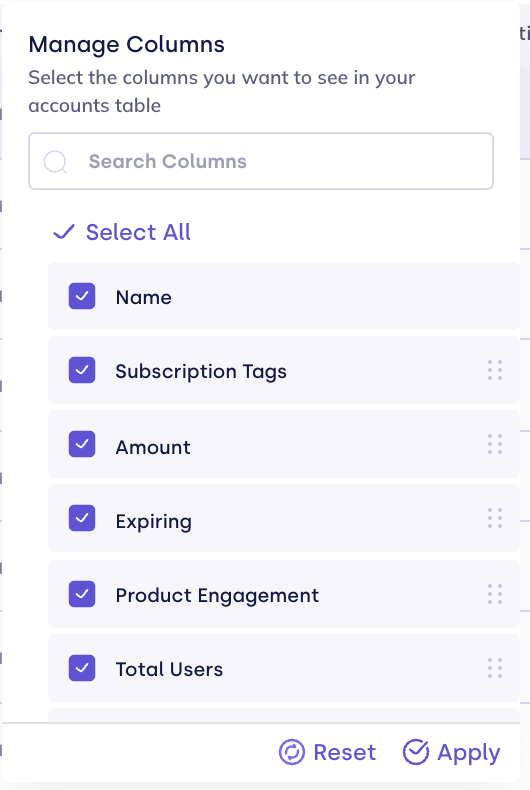
Click Columns above the grid to pick which columns you see and in what order.
- Click Columns.
- Check a column to show it, or uncheck it to hide it. Use Search Columns to find one quickly, or Select All / Deselect All to toggle every column at once. A newly checked column is added to the end.
- Drag a selected column by its handle to move it. You can also focus the handle and use the arrow keys.
- Click Apply.
The account name column always stays first and can't be hidden or moved. Reset returns the grid to your workspace's default columns. Your column choice and order are saved in your browser, so they're still there the next time you open Accounts on that browser.
Filtering and scope
Use the filter control and sidebar chips to combine criteria. Common dimensions include:
| Dimension | Purpose |
|---|---|
| Search | Quick text match across configured searchable fields. |
| Has Risks / Opportunities | Keep accounts with at least one open negative (risk) or positive (opportunity) Needle Mover. Select both to show only accounts that have both. |
| Audiences | Intersect the grid with one or more saved Audiences segments. |
| Scope | Team managers only: My accounts, My team(s), one team, one member, or All accounts. Picking one fills in Assignees. |
| Assignees | Filter to accounts owned by specific internal users. |
| Funnel stage | Limit to accounts in selected journey stages or stage states. |
| Time period | Restrict metrics or summaries to a reporting window. |
| Advanced / selector filters | Boolean groups (AND / OR) using the structured filter builder. |
If you manage a shared team, a scope picker sits next to Assignees. A team scope includes your own accounts as well as your members'. All accounts appears only for roles that already see every account, and clears Assignees. If you change Assignees by hand so it no longer matches a scope, the picker shows Custom. Unlike Focus Areas, the Accounts page doesn't apply a scope until you pick one.
Active filters appear as chips; clear them to widen the result set again. Filter choices are reflected in the URL so you can bookmark or share a view. That includes the search text: reloading the page or opening a shared link keeps the search box filled in.
Sorting and pagination
Column headers drive sort direction where sorting is enabled for that column. Pagination and page size are query-driven so large books of business stay responsive. Sort by the Risk Count or Opportunity Count column to put the accounts with the most open risks or opportunities first. Combine sort with filters to answer questions like “highest ARR among accounts with open risks this quarter.”
Health scores aren't shown in the grid; an account's score and the factors behind it are on its Renewal → Driving Factors sub-tab. See Account Predictions.
Export
When your role includes export, you can download the currently filtered account set as CSV. Export uses the same visible columns as the grid (chart-style cells are skipped). Use export for ad-hoc analysis; for recurring CRM pushes, prefer CRM sync or Audience sync.
Account hierarchy (multi-product)
When account hierarchy is enabled for your workspace, the Accounts experience may switch to a layout optimized for parent and child revenue and adoption across products. You still filter and drill in, but summaries and rollups align to the hierarchy your admin configured—see Account hierarchy.
Searching in the hierarchy layout
Search keeps the parent and child structure instead of flattening results into one list. Search matches an account's name or properties.
- When a child account matches, it appears nested under its parent, and the parent row is expanded automatically, even if the parent itself doesn't match.
- When a parent account matches, its matching children appear under it. Children that didn't match are collapsed behind a N didn't match — Show all link; click it to reveal them.
- When only a child matches, its non-matching siblings aren't offered.
Opening an account
Select a row to open the account detail experience. The header shows Relationship, Risks, Opportunities, and (when enabled) Actions tiles that jump to the matching tab; below it are predictions, subscriptions, timeline, relationship map (if enabled), notes, and other tabs your workspace exposes.
Adoption → Properties lists the account's properties as cards grouped by topic, using the labels from your account model. Search filters the cards by name or value. IDs have a Copy button, links open in a new tab, lists show as tags, and nested values show as labeled rows.
Related
- Dashboard overview — workspace-level summary cards.
- Metrics — metric columns and history.
- Signals — rules that can appear in the timeline and drive alerts.
- Audiences — saved segments used in filters.
- Predictions — how health scores and outcomes are calculated.
- Account model — where row data originates.